
Active Directory (LDAP) Synchronization
Fixiam supports user synchronization from on-premise Microsoft Active Directory environments using LDAP configuration.
This allows organizations to import and synchronize users from existing Active Directory environments into Fixiam instead of creating users manually one at a time.
Active Directory synchronization helps organizations:
- Simplify user onboarding
- Reduce manual user administration
- Maintain centralized identity records
- Synchronize organizational user information
- Improve operational efficiency
- Support identity lifecycle management processes
Before You Begin
Before configuring Active Directory synchronization, ensure the following information is available:
- Active Directory server address
- LDAP port number
- LDAP username
- LDAP password
- Organizational Unit (OU) details where applicable
- Required network access between Fixiam and the directory environment
Organizations should also confirm that the required directory attributes are available within their Active Directory environment.
Accessing Active Directory Synchronization
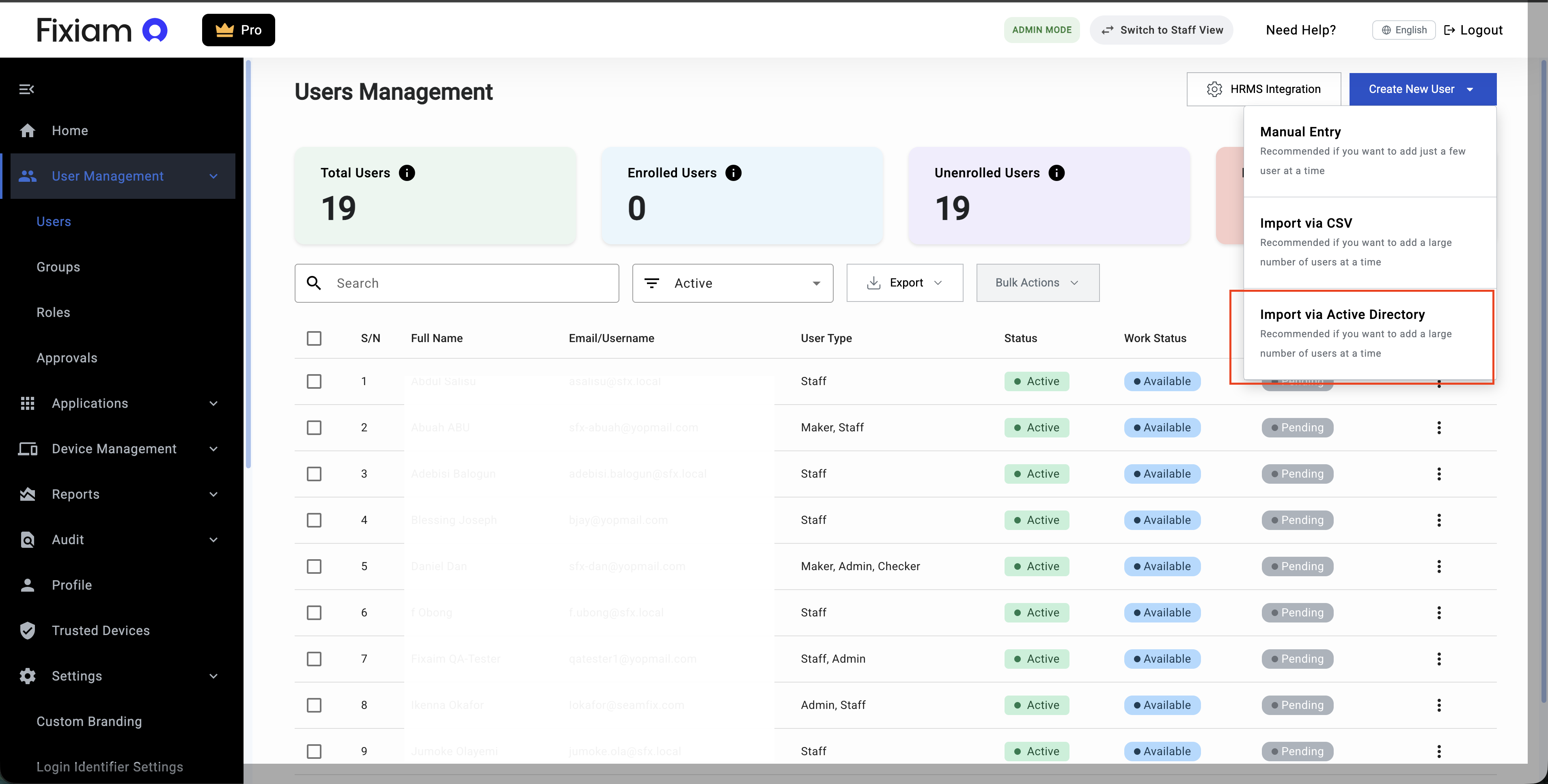
To begin Active Directory synchronization navigate to:
User Management → Users → Create New User → Import via Active Directory
Selecting the Import Method
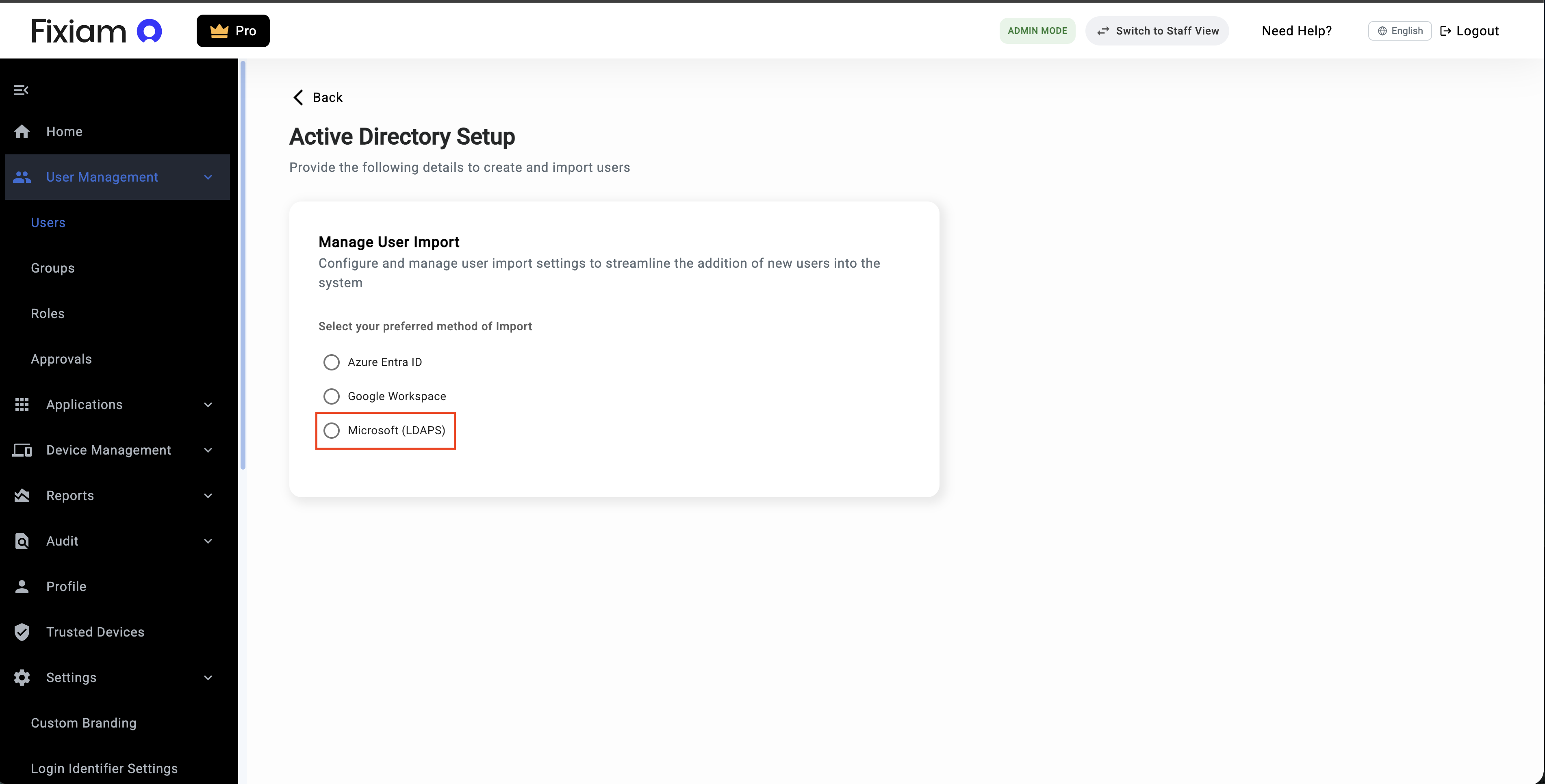
Fixiam supports multiple synchronization sources.
To configure on-premise Active Directory synchronization:
- Select
Microsoft LDAPS - Continue to the configuration step
Configuring LDAP Connection
Administrators must provide the required LDAP connection details to allow Fixiam communicate with the Active Directory environment.
Required configuration fields may include:
- Server Address
- Port Number
- Username
- Password
- Organizational Unit (OU)
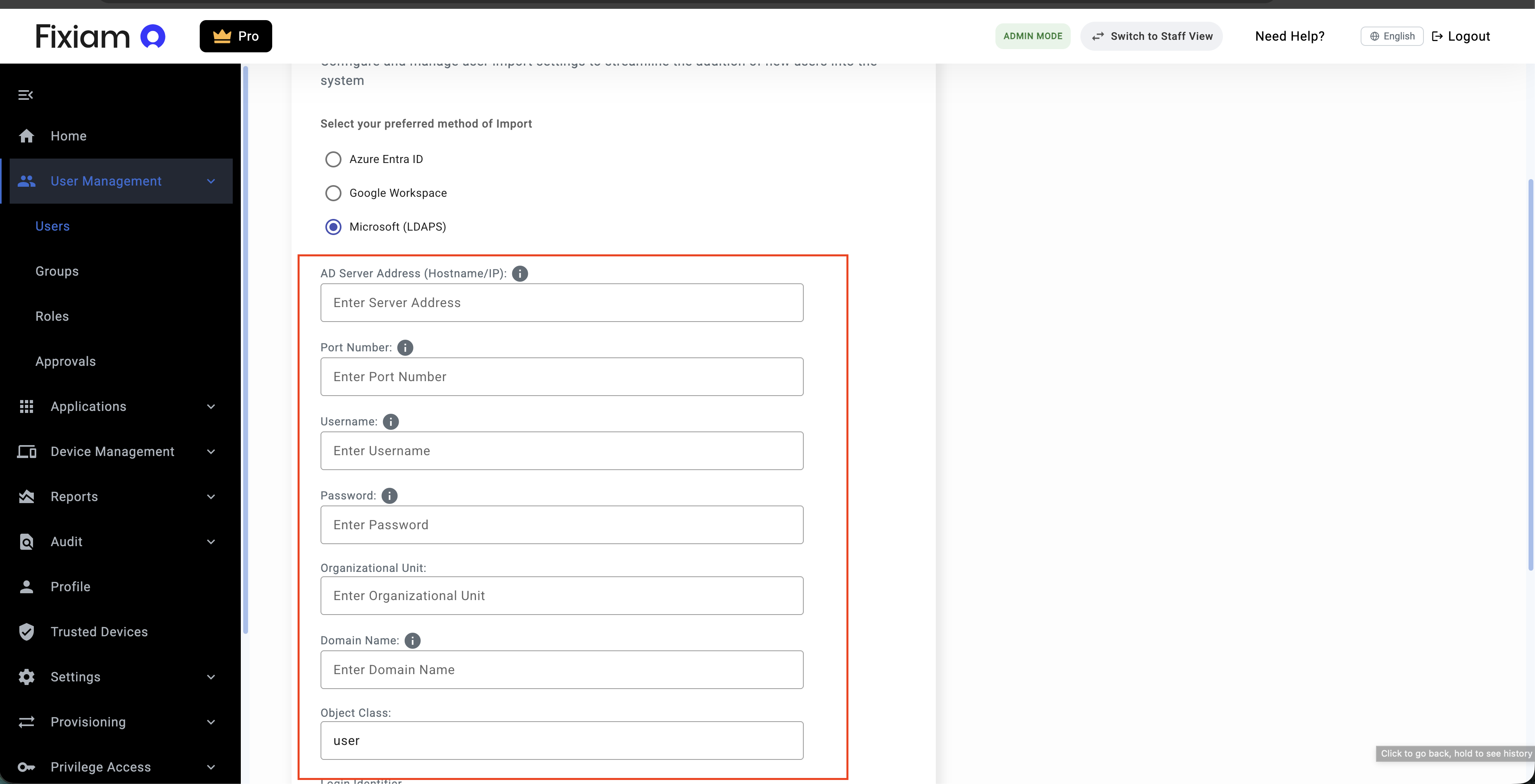
These settings allow Fixiam establish a secure connection to the directory environment.
Attribute Mapping
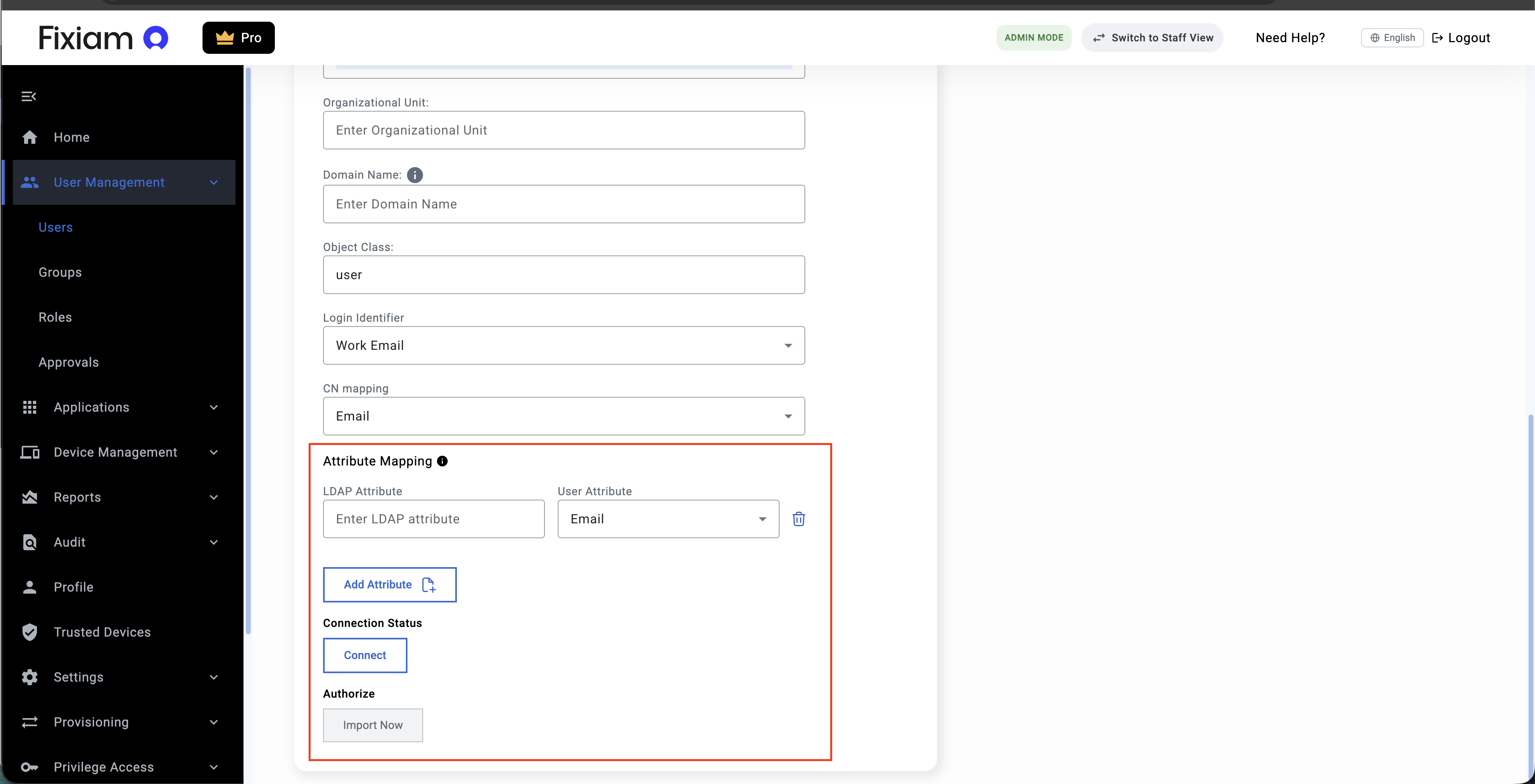
Fixiam allows administrators to map Active Directory attributes to Fixiam user attributes during synchronization setup.
This helps ensure synchronized users are created with the correct identity information.
Administrators can:
- Add attribute mappings
- Modify attribute mappings
- Remove attribute mappings
- Review mappings before synchronization
Supported User Attributes
Fixiam supports synchronization of the following user attributes from Active Directory environments.
| Fixiam Attribute | Common Active Directory Attribute | Description |
|---|---|---|
| User's primary work email address | ||
| Username | sAMAccountName | User's login username |
| User ID | objectGUID / uid | Unique directory identifier |
| Employee ID | employeeID | Employee identification number |
| First Name | givenName | User's first name |
| Last Name | sn | User's surname or last name |
| Phone Number | telephoneNumber | User's phone number |
| Personal Email | otherMailbox / alternate mail attribute | User's secondary or personal email |
| Full Name | displayName | User's display name |
| Position | title | User's job title or position |
| Employment Type | employeeType | Employment classification |
| Department | department | Organizational department |
| Business Unit | company / businessCategory | Business unit or organizational division |
| Cost Center | extensionAttribute / custom attribute | Financial or organizational cost center |
Note:
Active Directory environments may use different attribute structures depending on organizational configuration. Administrators should confirm the correct directory attributes within their environment before synchronization setup.
Testing the Connection
Before importing users, administrators can test the LDAP connection to validate:
- Server accessibility
- Authentication credentials
- Directory communication
A successful validation confirms that synchronization can proceed.
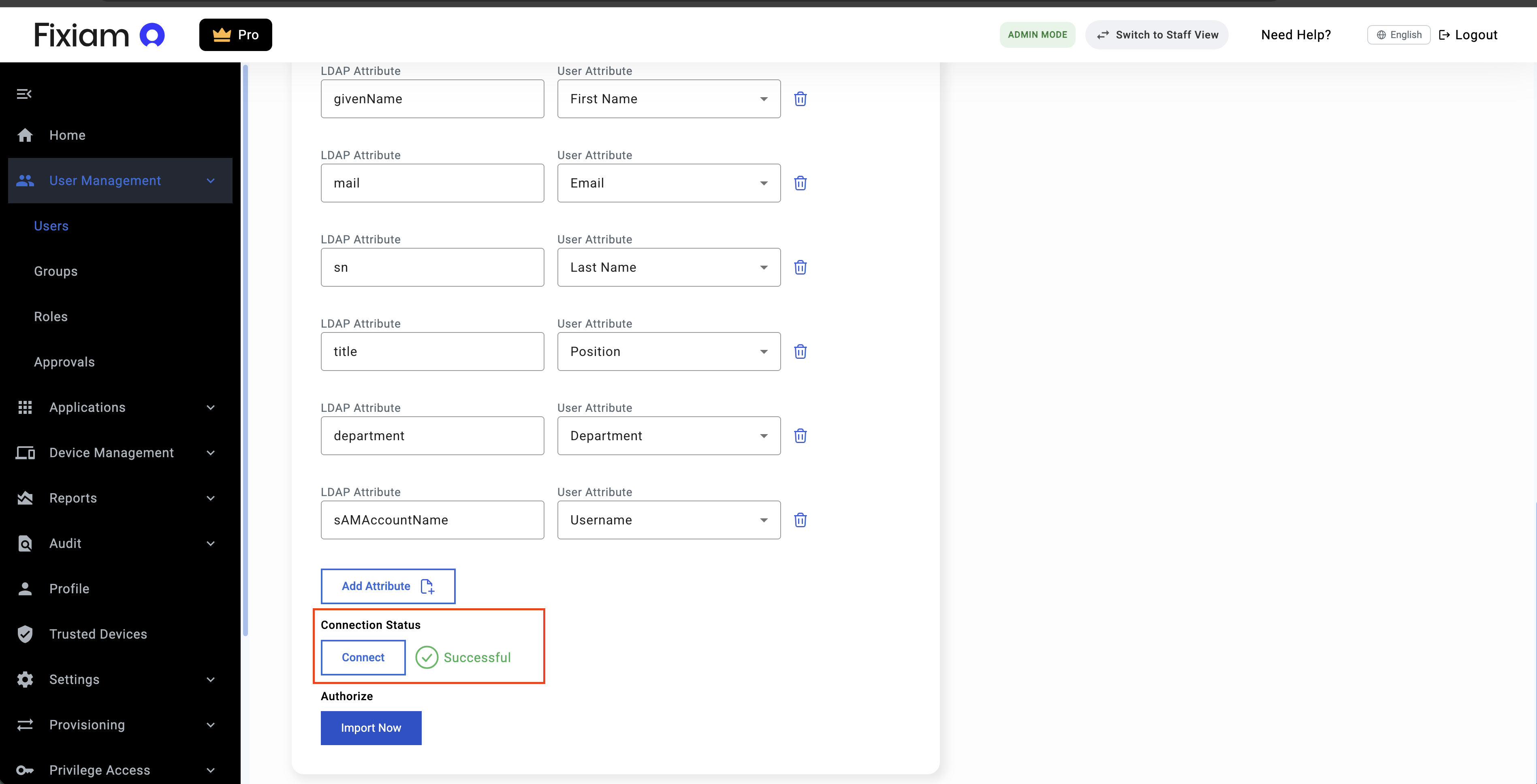
Importing Users
Once configuration is completed successfully, administrators can begin synchronization using the Import Now action.
During synchronization, Fixiam retrieves users from the configured Active Directory environment and processes them into the platform.
Active Directory Settings
After synchronization setup is completed, synchronization operations can be managed from:
Settings → Active Directory Settings
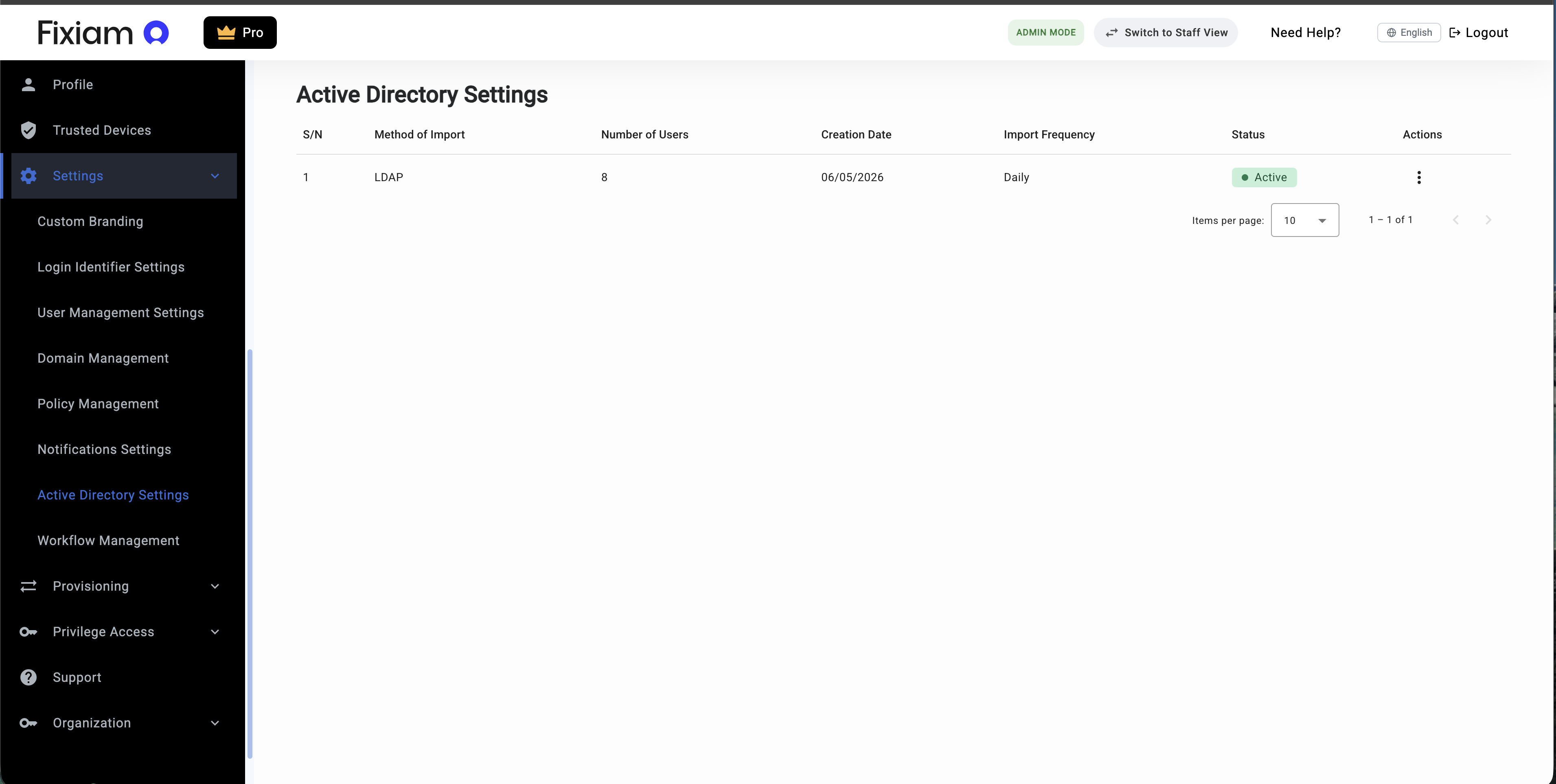
This section provides operational visibility and synchronization management capabilities.
Administrators can:
- View synchronization configuration
- Trigger manual synchronization
- Edit synchronization settings
- Configure synchronization frequency
- View synchronization history
- Review synchronization issues
- Disconnect synchronization
Synchronization Frequency
Fixiam supports scheduled synchronization using configurable synchronization frequencies.
Supported synchronization schedules include:
- Daily synchronization
- Weekly synchronization
- Monthly synchronization
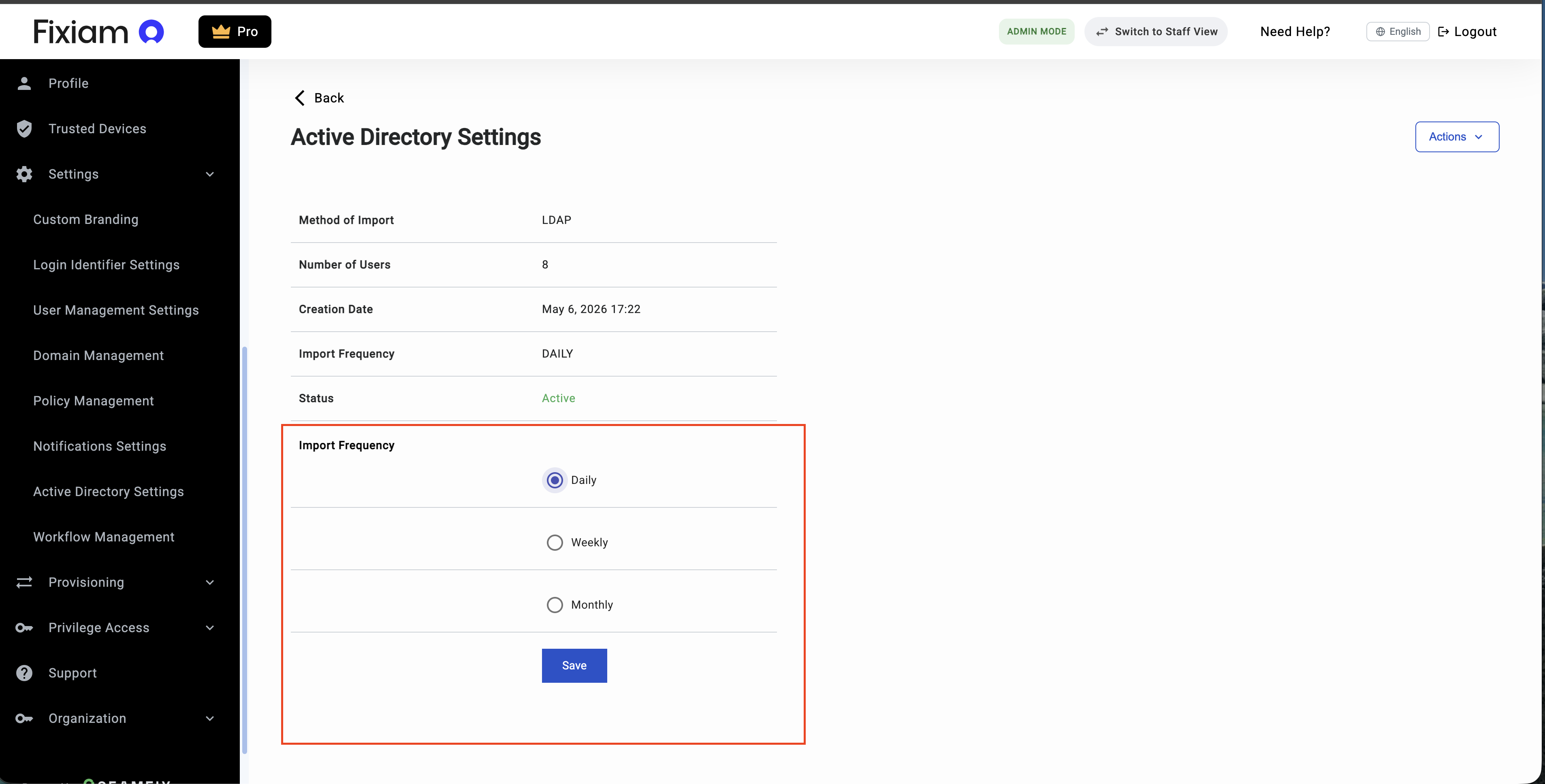
Scheduled synchronization helps organizations keep user records aligned with Active Directory changes automatically.
Manual Synchronization
Administrators can manually trigger synchronization at any time using the Import Now action.
Manual synchronization is useful when:
- New users are added to Active Directory
- Immediate synchronization is required
- User updates need to reflect immediately
- Synchronization configuration is being tested
Synchronization History
The Synchronization History page provides visibility into synchronization activities.
Administrators can monitor:
- Synchronization status
- Trigger source
- Synchronization method
- Synchronization duration
- Number of synchronized users
- Synchronization issues
- Synchronization timing
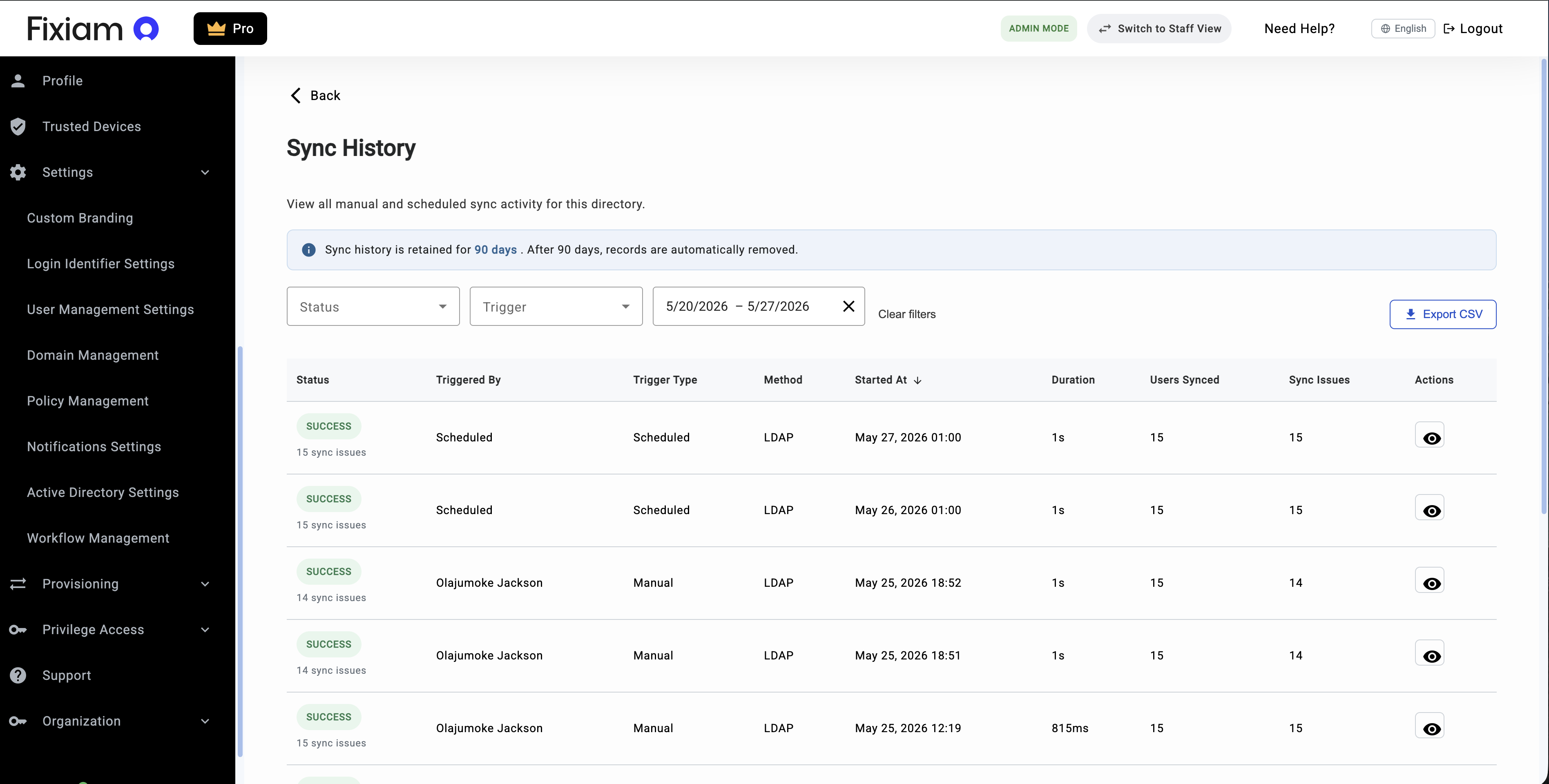
Administrators can also:
- Filter by synchronization status
- Filter by synchronization trigger
- Export synchronization records
Viewing Synchronization Details
Each synchronization activity contains detailed operational visibility.
Administrators can review:
- Retrieved users
- Created users
- Updated users
- Skipped users
- Failed users
- Synchronization timing
- Processing outcomes
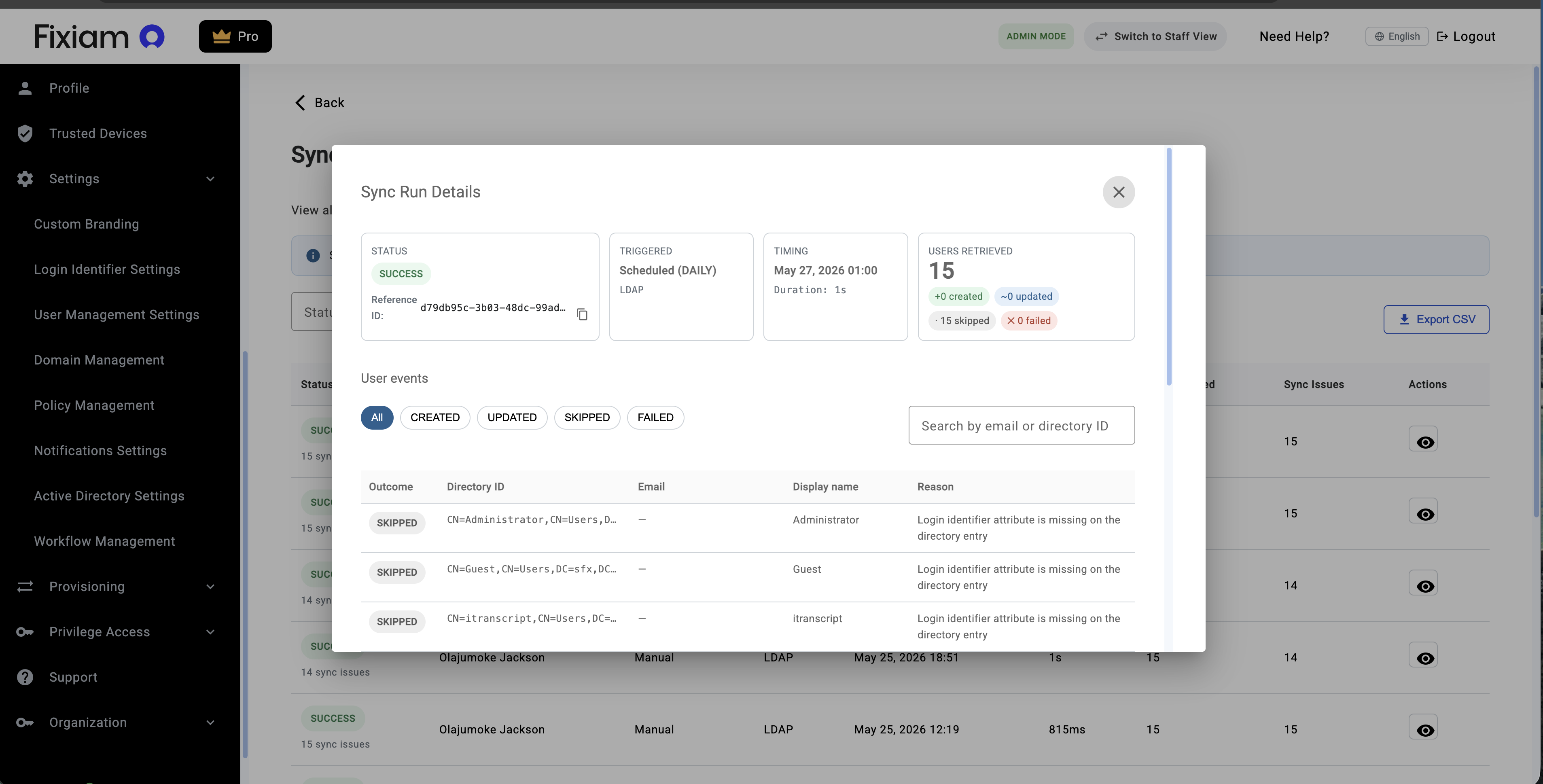
This helps administrators better understand synchronization behavior and troubleshoot synchronization issues.
Understanding Synchronization Outcomes
Synchronization activities may produce different outcomes for user records.
| S/N | Event | Description |
|---|---|---|
| 1 | Created | A new user was successfully created in Fixiam. |
| 2 | Updated | A new user was successfully created in Fixiam. |
| 3 | Skipped | A user was skipped during synchronization. This may happen when:
|
| 4 | Failed | The synchronization process failed for the user record. |
Administrators should review synchronization issues for additional details.
Synchronization Issues
The Synchronization Issues page helps administrators identify synchronization problems and data inconsistencies.
Examples include:
- Missing login identifier attributes
- Missing required attributes
- Invalid user records
- No attribute changes detected
- Directory and Fixiam record mismatches
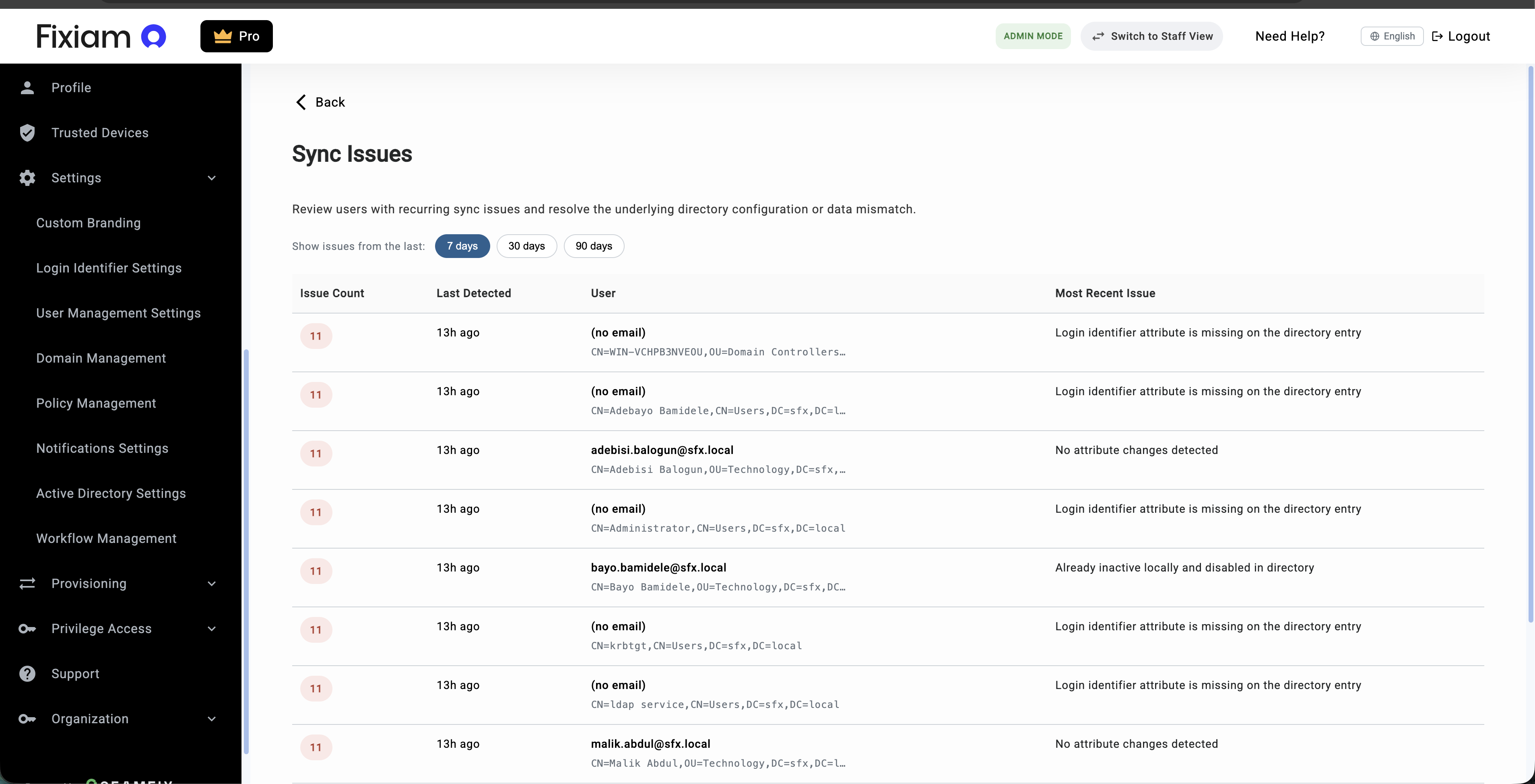
This helps organizations proactively identify and resolve synchronization problems.
Lifecycle-Aware Synchronization
Fixiam supports lifecycle-aware synchronization behavior for synchronized Active Directory users by:
- Detecting existing synchronized users
- Reconciling synchronized user records
- Processing user updates
- Tracking synchronization outcomes
- Monitoring synchronization issues
This helps organizations maintain more accurate and reliable identity records over time.
Best Practices
To achieve reliable synchronization results:
- Validate attribute mappings before enabling scheduled synchronization
- Use consistent login identifiers
- Review synchronization issues regularly
- Test synchronization manually before enabling automated schedules
- Monitor synchronization history periodically
Troubleshooting
Why was a user skipped during synchronization?
A user may be skipped if:
- Required attributes are missing
- No attribute changes were detected
- Synchronization requirements were not met
Administrators should review synchronization details and synchronization issues for additional information.
Why are synchronization issues appearing repeatedly?
Recurring issues may indicate:
- Incorrect attribute mappings
- Incomplete directory records
- Invalid synchronization configuration
- Missing required user information
Administrators should review the affected user records and directory configuration.
Can synchronization be triggered manually?
Yes.
Administrators can manually trigger synchronization using the Import Now action.
Where can synchronization activities be monitored?
Synchronization activities can be monitored from:
Settings → Active Directory Settings → Sync HistoryWhat happens when a synchronized user is updated in Active Directory?
Fixiam supports lifecycle-aware synchronization and can process updates for existing synchronized users during subsequent synchronization runs.
Updated about 2 months ago