
Login Controls
Login controls help protect user accounts from unauthorized access, brute force attacks, and unattended sessions.
These settings define how Fixiam responds to failed sign in attempts and how long authenticated sessions can remain inactive.
Navigate to:
Settings → User Management Settings → Access Policy
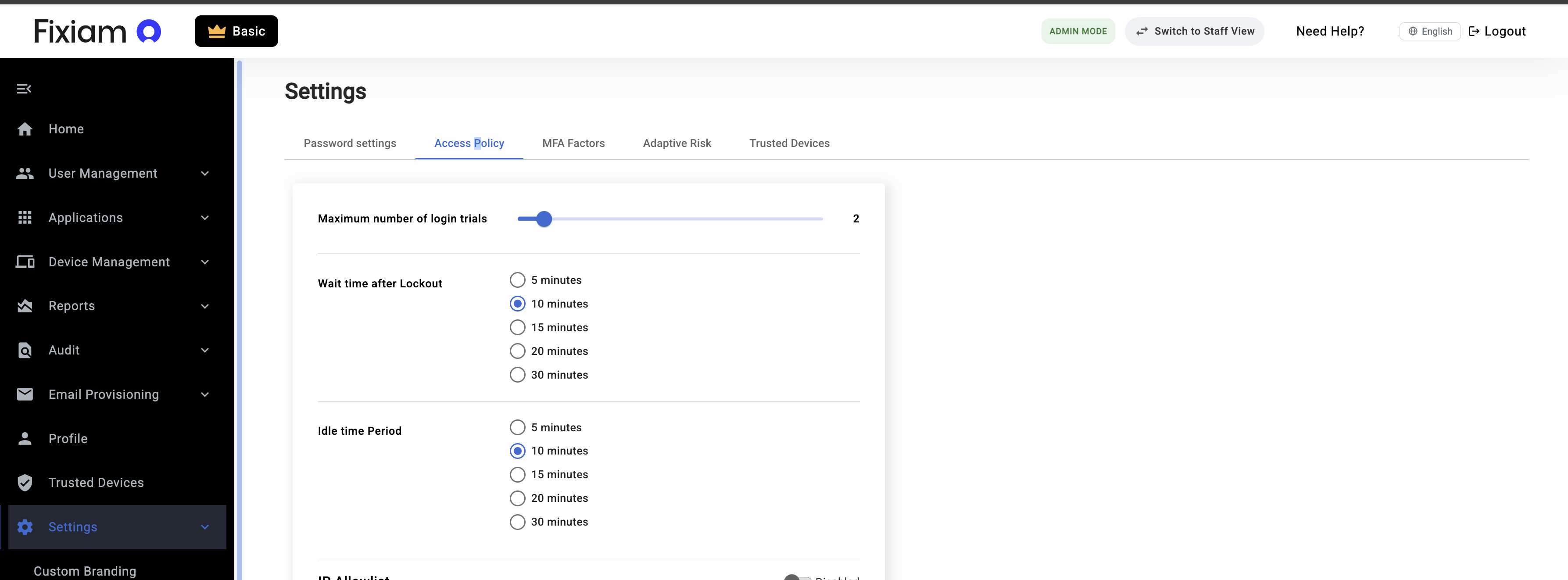
Maximum Login Attempts
Maximum Login Attempts defines the number of consecutive failed sign in attempts allowed before a user's account is temporarily locked.
This helps protect against password guessing and brute force attacks.
Example
If Maximum Login Attempts is set to 3:
| Attempt | Result |
|---|---|
| First incorrect password | Allowed |
| Second incorrect password | Allowed |
| Third incorrect password | Account locked |
The user must wait until the configured lockout period expires before attempting to sign in again.
Wait Time After Lockout
Wait Time After Lockout determines how long a user must wait before attempting to sign in again after exceeding the maximum login attempts.
Available options include:
- 5 Minutes
- 10 Minutes
- 15 Minutes
- 20 Minutes
- 30 Minutes
Example
If:
- Maximum Login Attempts = 3
- Wait Time After Lockout = 15 Minutes
A user who enters an incorrect password three consecutive times will be locked out for 15 minutes before another sign in attempt can be made.
Idle Time Period
Idle Time Period defines how long an authenticated session can remain inactive before the user is automatically signed out.
This helps reduce the risk of unauthorized access on unattended devices.
Available options include:
- 5 Minutes
- 10 Minutes
- 15 Minutes
- 20 Minutes
- 30 Minutes
Example
If Idle Time Period is set to 10 Minutes:
- A user successfully signs in.
- The user leaves the workstation without signing out.
- After 10 minutes of inactivity, Fixiam automatically ends the session.
- The user must sign in again to continue.
Example Configuration
The following configuration is commonly used by organizations seeking a balance between security and usability.
| Setting | Recommended Value |
|---|---|
| Maximum Login Attempts | 3 |
| Wait Time After Lockout | 10 Minutes |
| Idle Time Period | 10 to 15 Minutes |
Organizations with stricter security requirements may choose shorter idle periods and longer lockout durations.
Common Scenarios
User Is Locked Out
A user may be locked out after exceeding the configured maximum login attempts.
Resolution
- Wait until the lockout period expires.
- Attempt to sign in again.
- Contact an administrator if access remains unavailable.
User Is Logged Out Unexpectedly
This usually occurs because the configured idle session timeout has been reached.
The user can simply sign in again to continue.
User Frequently Gets Locked Out
Possible causes include:
- Forgotten passwords
- Saved credentials containing outdated passwords
- Automated applications attempting authentication with incorrect credentials
Administrators should review authentication logs to determine the cause.
Best Practices
- Keep maximum login attempts low.
- Configure lockout periods that discourage password guessing attacks.
- Use shorter idle timeouts on shared or public devices.
- Use longer idle timeouts only where operational requirements demand it.
- Combine login controls with MFA and Adaptive Risk Authentication for stronger security.
Related Topics
- Password Authentication
- Multi Factor Authentication (MFA)
- Adaptive Risk Authentication
- Trusted Devices
Updated about 2 months ago