
Provision Users to Slack
Overview
You can manage Slack users directly from Fixiam by enabling outbound provisioning.
Once set up, users assigned to Slack in Fixiam will automatically be created and updated in your Slack workspace. This ensures user access is consistent without manual onboarding.
Before You Begin
Make sure the following are in place:
-
The Slack application has been added in Fixiam
-
You have admin access to your Slack workspace
-
Your Slack plan supports SCIM provisioning
How It Works
- You connect Slack to Fixiam using SCIM credentials
- You create new users in Fixiam and grant them access to slack
- Fixiam automatically provisions those users to Slack
- Slack reflects the user data and access
- When the user needs to be deactivated you can do that directly from Fixiam instead of Slack
- User gets deactivated in Slack
Step 1: Prepare Slack
Before connecting Fixiam, you need to generate credentials from Slack.
- Log in to your Slack workspace
- Create or configure an application in Slack
- Add the required scopes:
adminusers.profile:writeusergroups:writeusergroups:readuser:readusers:write
Important:
- Do not select extended admin scopes unless required
- Some scopes may require higher Slack plans
- Save the configuration
- Copy the generated token
You will use this token in Fixiam.
Step 2: Open Provisioning in Fixiam
- Go to the Provisioning section
- Select Outbound Provisioning
- Locate your Slack application in the list
Step 3: Set Up Connection
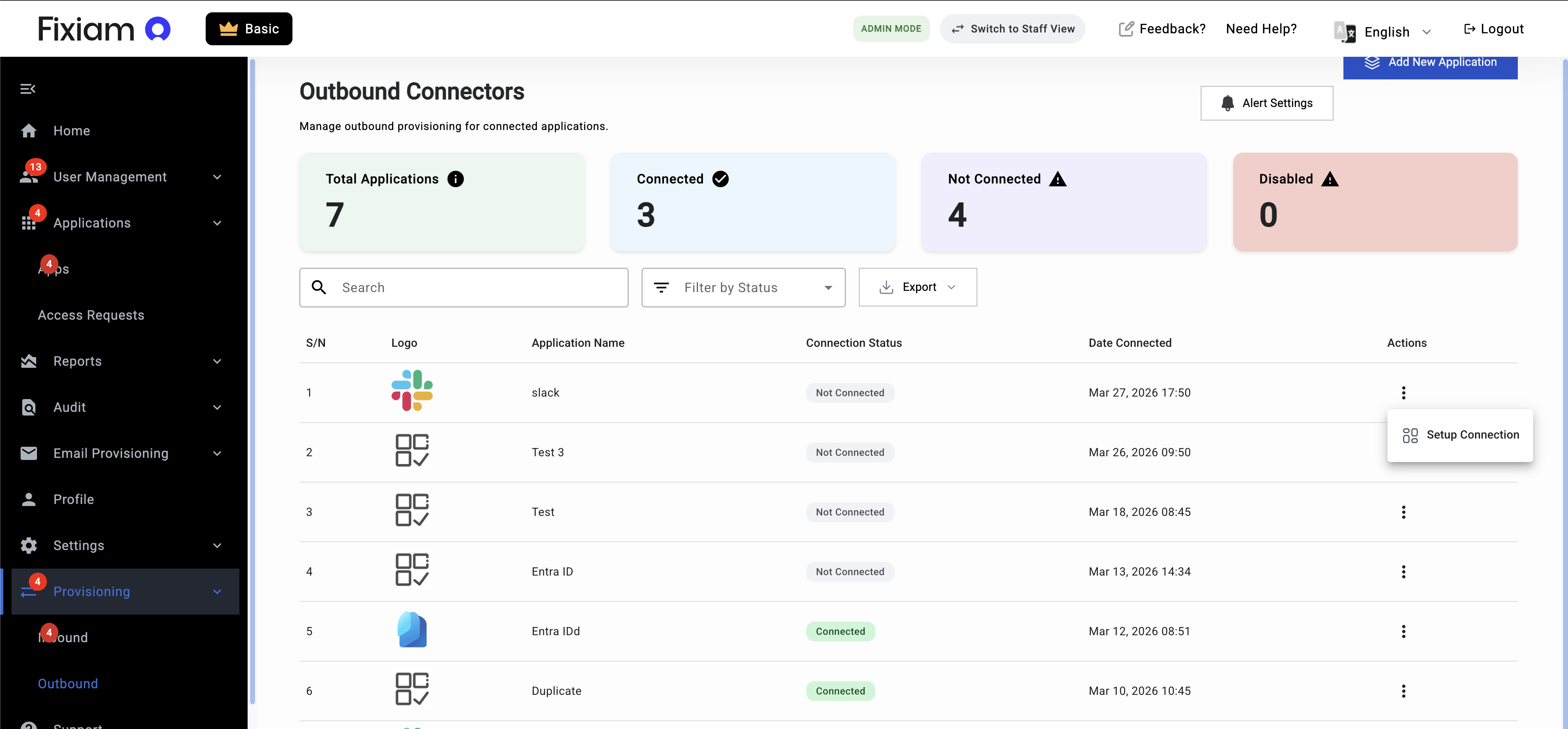
- Open the action menu for Slack
- Click Set Up Connection
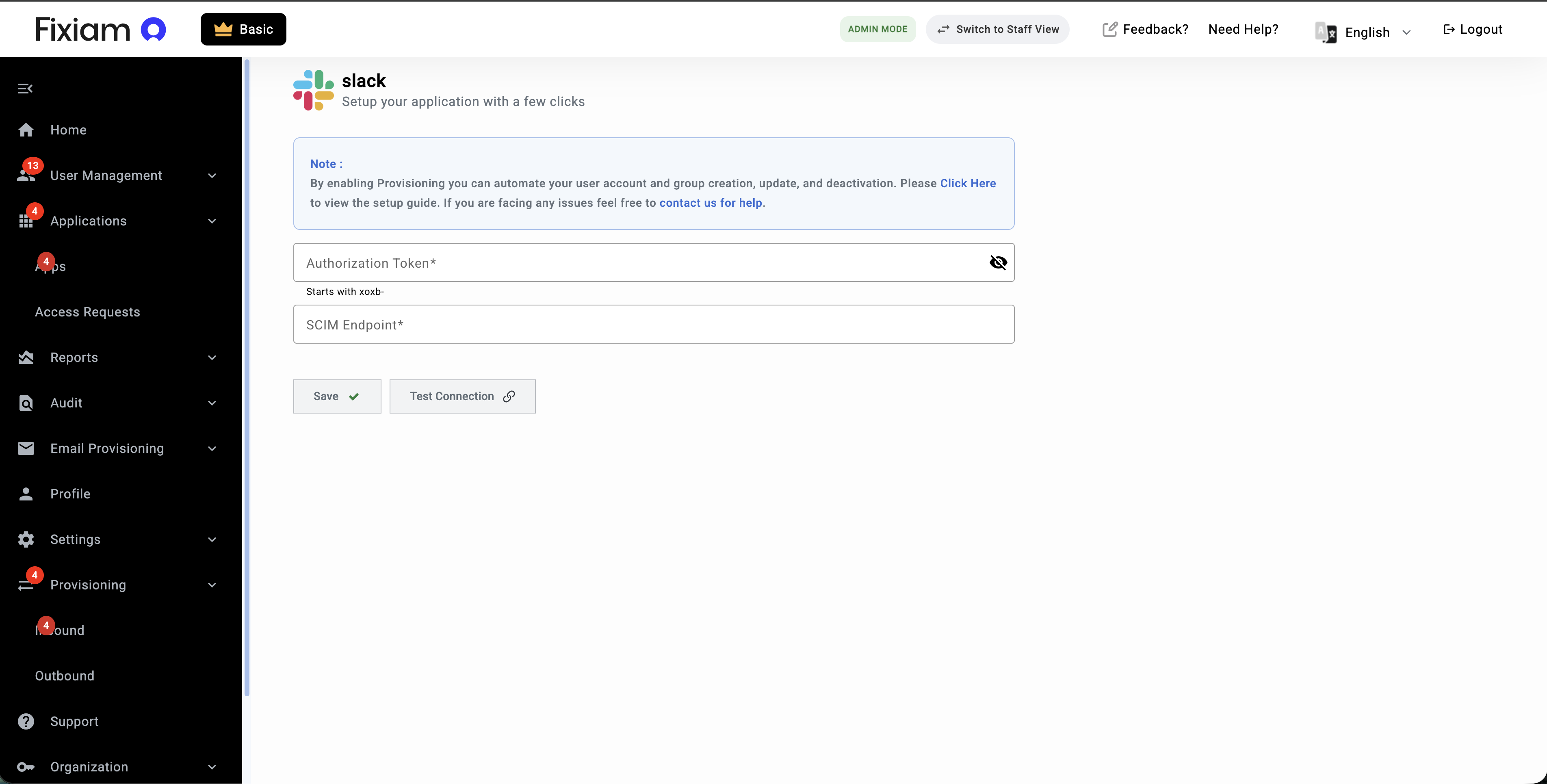
Provide the following:
- SCIM endpoint (https://api.slack.com/scim/v2/)
- Authorization token (from Slack)
- Click Save
- Click Test Connection
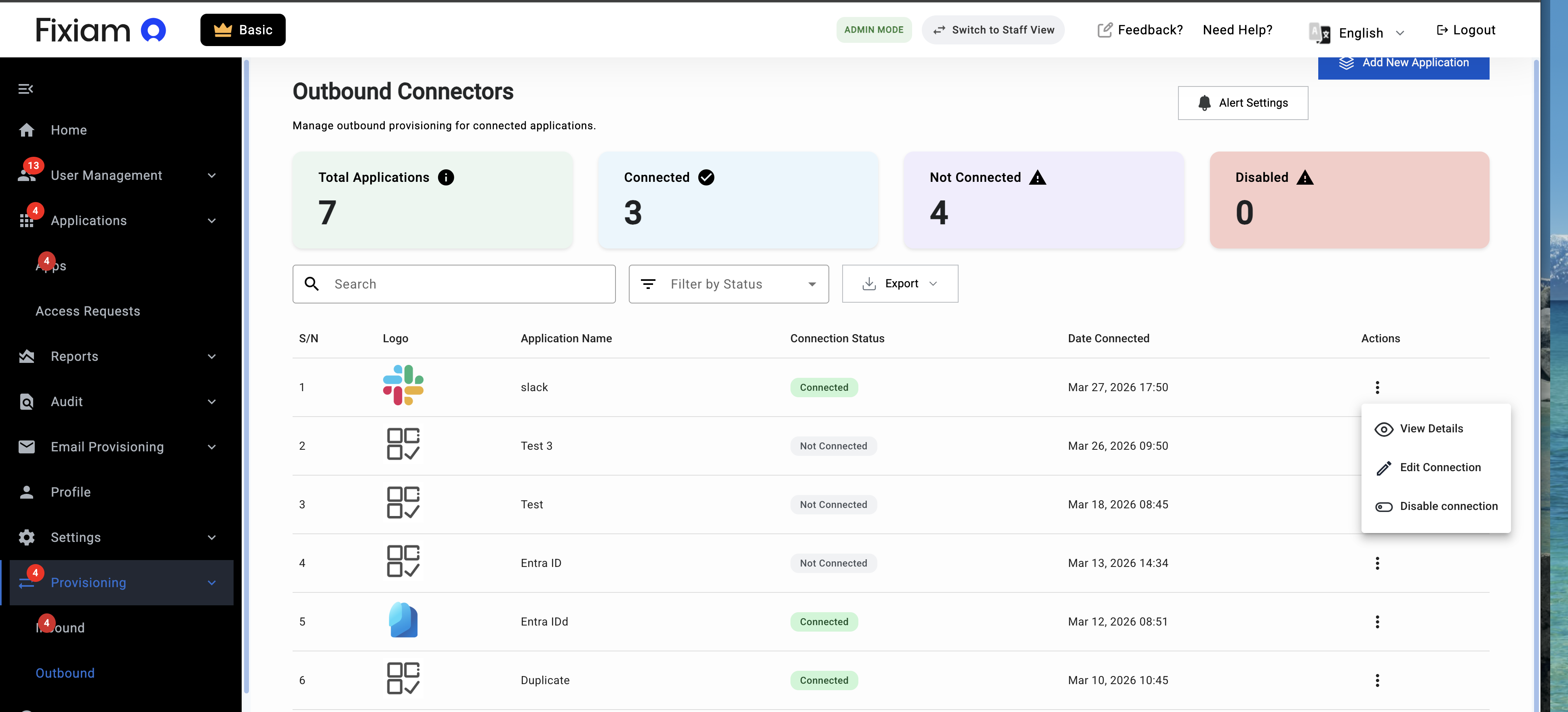
If successful, the connection will be established.
Step 4: Provision Users
Users are provisioned based on access.
- Only users assigned to Slack through groups will be provisioned
- If a user is not in a group with Slack access, they will not be created in Slack
To provision users:
- Assign users to a group that has Slack access
- Ensure the group is linked to the Slack application
→ See: Managing Groups and Access
What Happens Next
Once setup is complete:
- Users added to the group are automatically created in Slack
- Updates to user information are reflected in Slack
- Access remains consistent across both systems
Troubleshooting
Connection test fails
- Verify the token is correct
- Confirm Slack plan supports SCIM
- Check that required scopes are selected
Users are not provisioned
- Ensure users are assigned via groups
- Confirm the group has Slack access
User data is not updating
- Verify connection is active
- Check provisioning configuration
Summary
Provisioning to Slack allows you to:
- Automate user onboarding
- Maintain consistent user data
- Reduce manual effort across systems
Updated 3 months ago