
Assigning Permissions and Access Rights
Assigning permissions and access rights is a critical part of user role management, ensuring that users have the appropriate level of access to perform their duties.
Steps to Assign Permissions and Access Rights
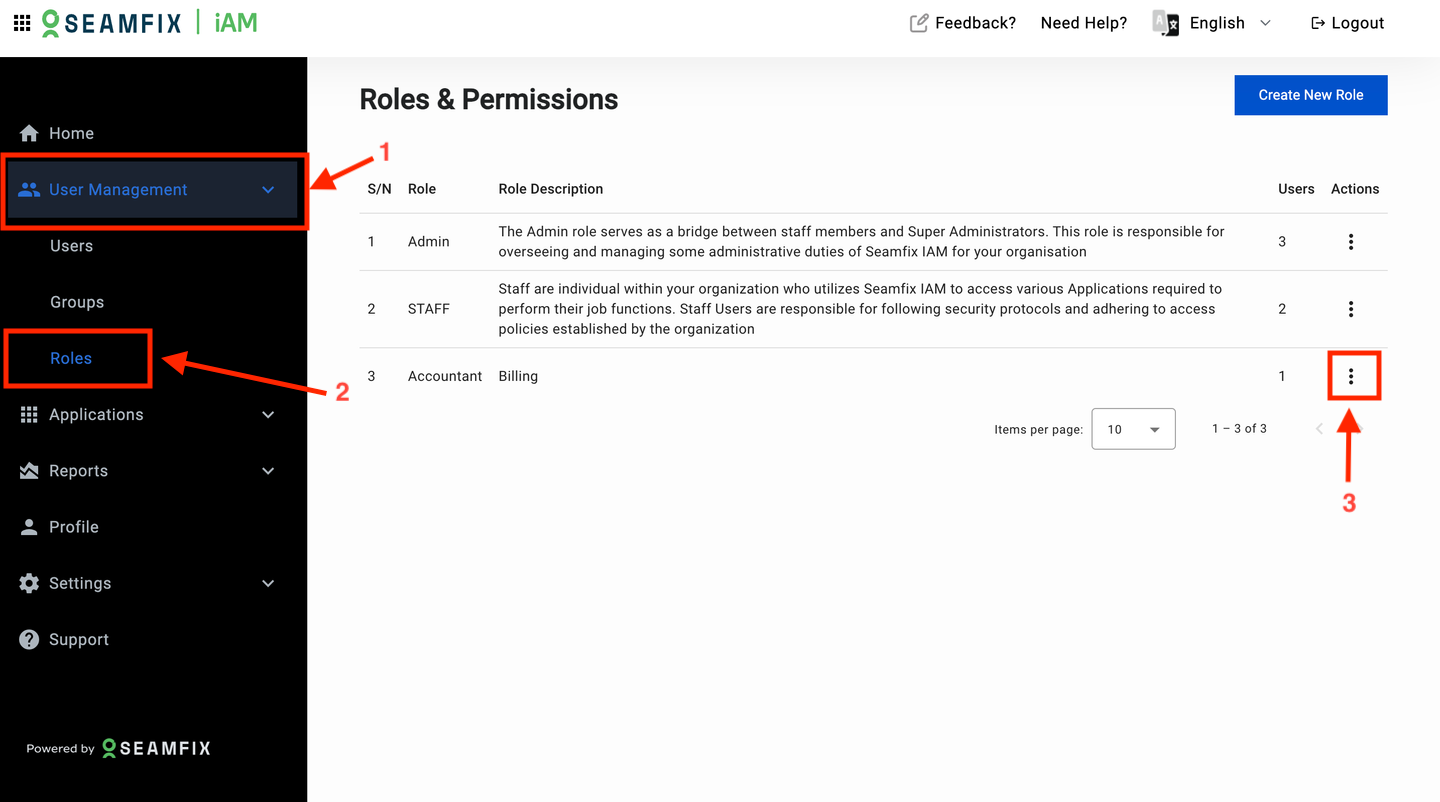
- Select the Role:
- Go to Role Management under User.
- Click on the role to which you want to assign or modify permissions.
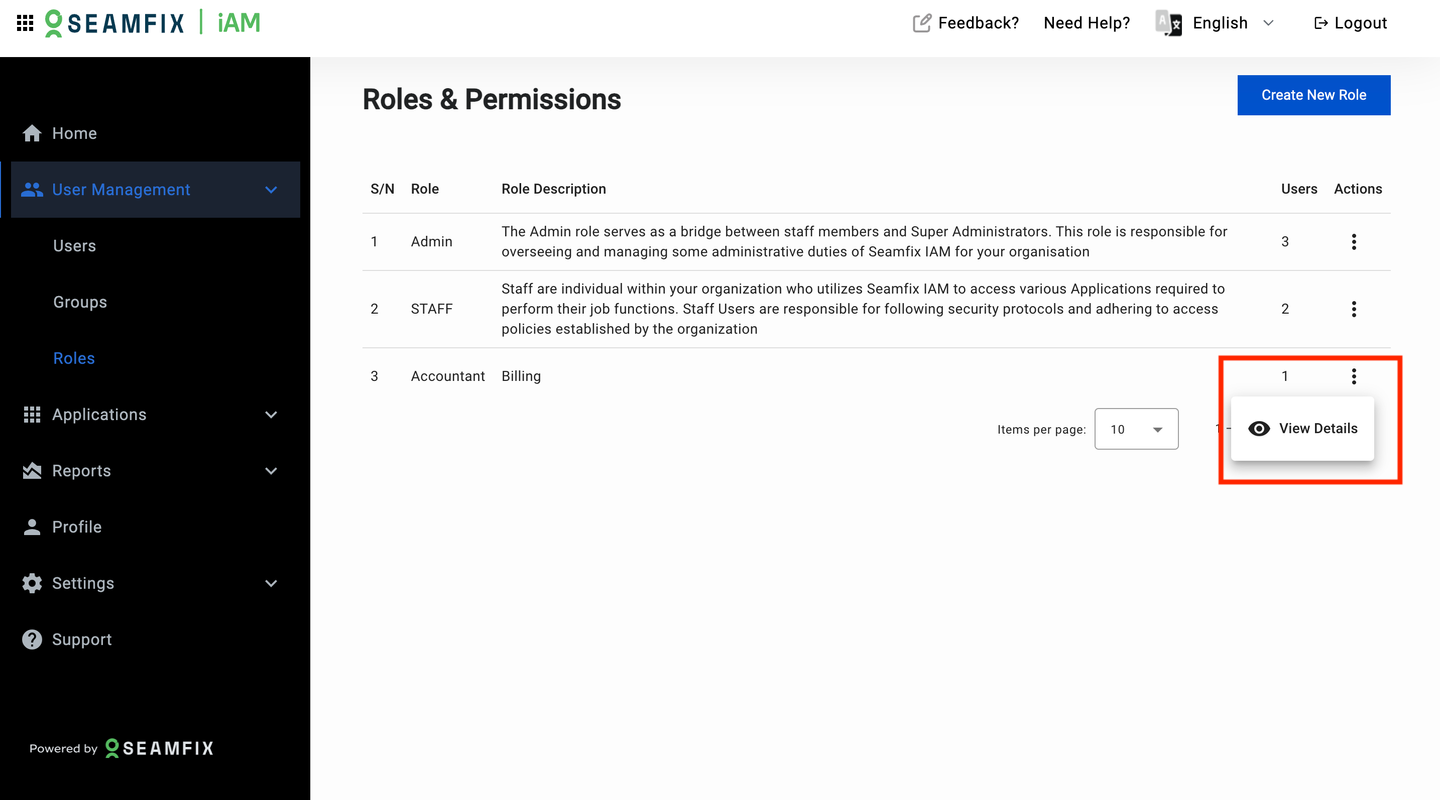
- Access the Permissions Section: Within the role’s details, locate the Permissions or Access Rights section.
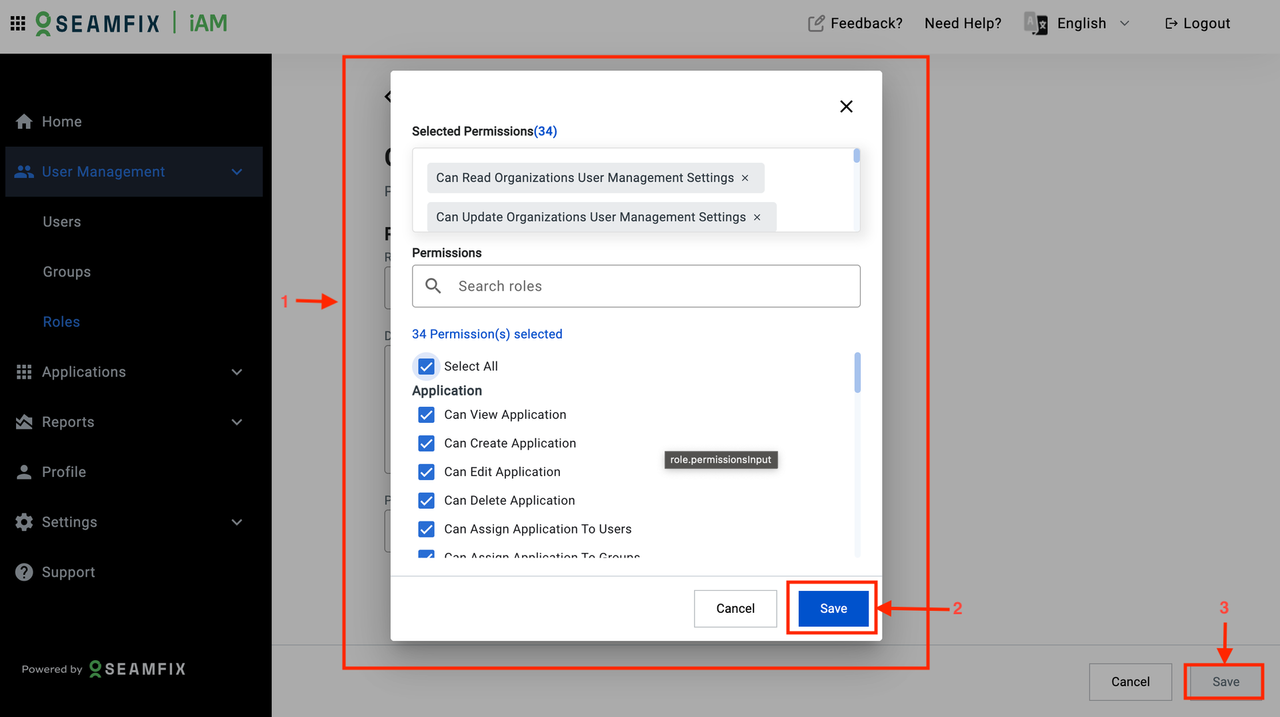
- Assign Permissions: Select the specific permissions for the role, such as:
- Access to Applications: Specify which applications the role can access and what actions they can perform (e.g., view, edit, delete).
- User Management: Define the scope of user management capabilities, such as adding or removing users.
- Security Policy Management: Grant access to manage security settings, including MFA and password policies.
- Reporting: Enable access to generate and view specific types of reports.
- Set Access Levels: For each permission, you can define access levels such as:
- Read-Only: The user can view the information but cannot make changes.
- Edit: The user can view and modify information.
- Admin: The user has full control over the assigned permissions.
- Review and Save Permissions:
- Double-check the assigned permissions and access levels.
- Click Save to apply the permissions to the role.
Test Role Permissions: It’s recommended to test the role with assigned permissions to ensure that users can access what they need and nothing more.
Updated over 1 year ago
Did this page help you?