
Application Role Mapping
Overview
Application Role Mapping allows you to control what users can do inside an application, not just whether they can access it.
Once an application is connected to Fixiam, you can define roles (for example: Admin, Viewer, Manager) and assign them to users. These roles are then passed to the application during login.
Before You Begin
Make sure the following are in place:
-
The application has already been onboarded in Fixiam
→ See: How to Onboard an Application -
Users have been granted access to the application through groups
→ See: Managing Groups and Access -
The application supports receiving roles from Fixiam
(This must be confirmed during application setup)
How It Works
- You define roles for an application in Fixiam
- You assign those roles to users (individually or in bulk)
- When a user logs in, Fixiam sends the assigned role to the application
- The application uses that role to determine what the user can do
Step 1: Define Application Roles
- Go to the application list
- Locate the application
- Open the Manage Roles option
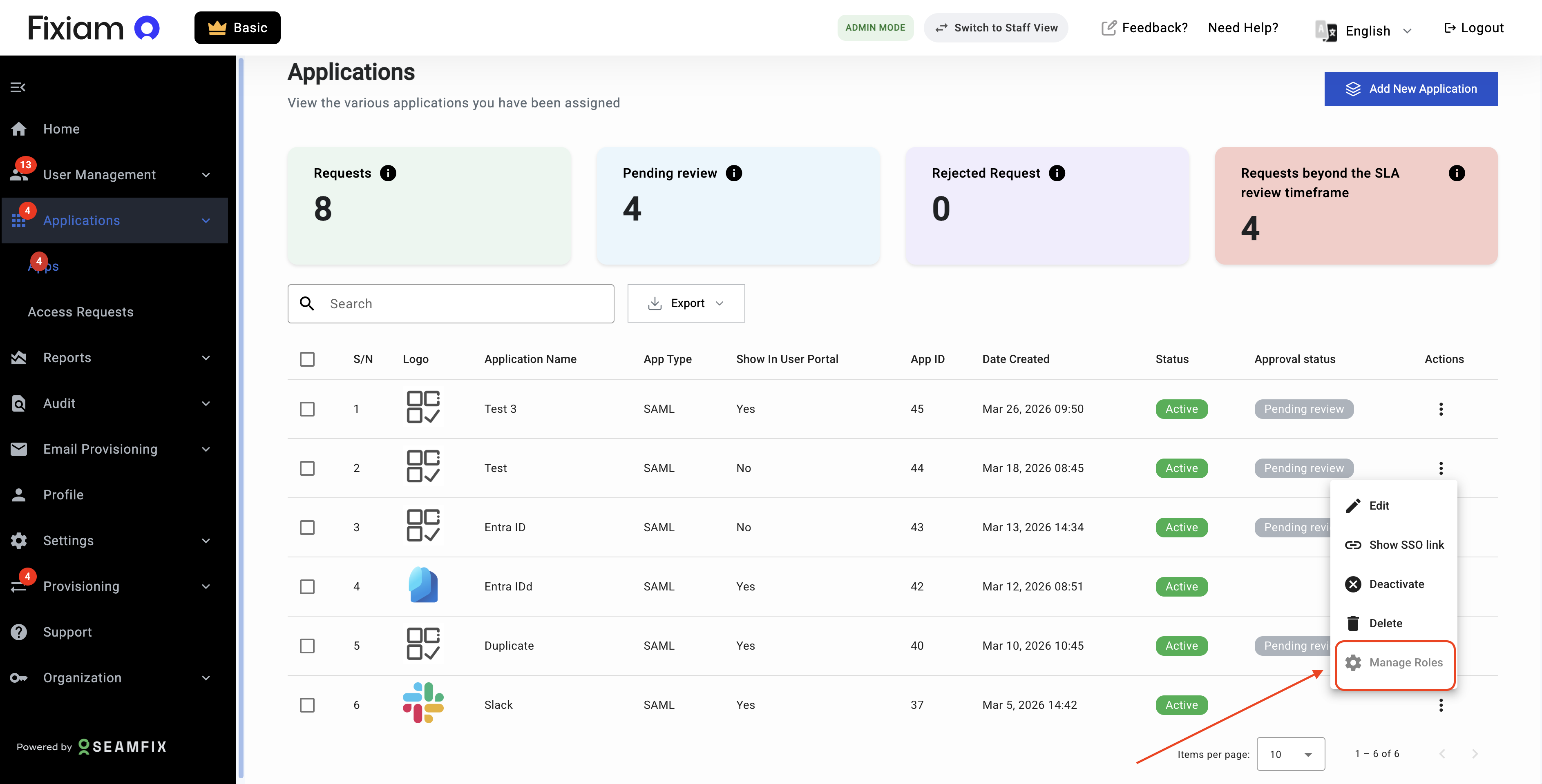
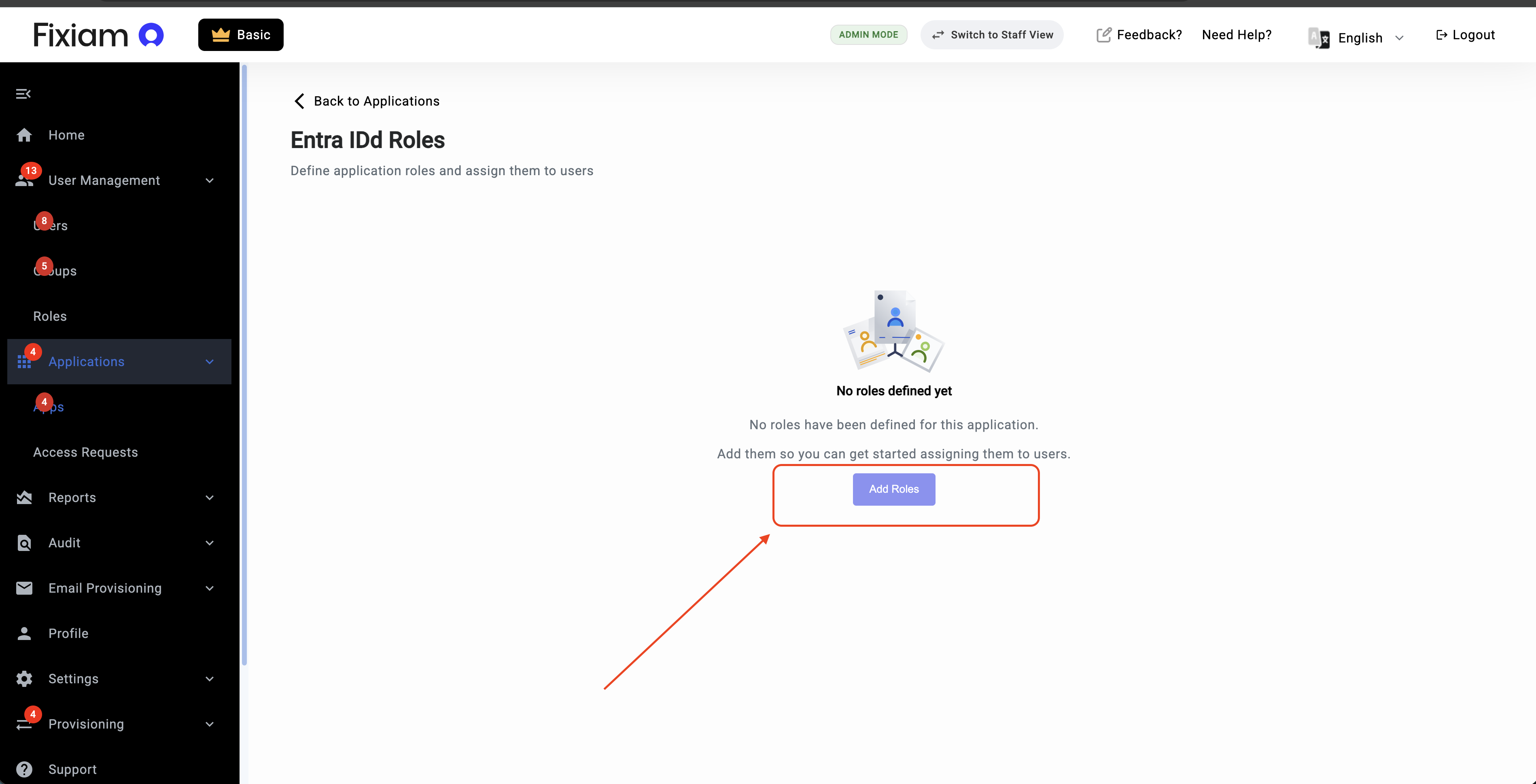
If no roles exist yet:
- Click Add New Role
- Enter the role details
- Save by clicking the button Add Roles
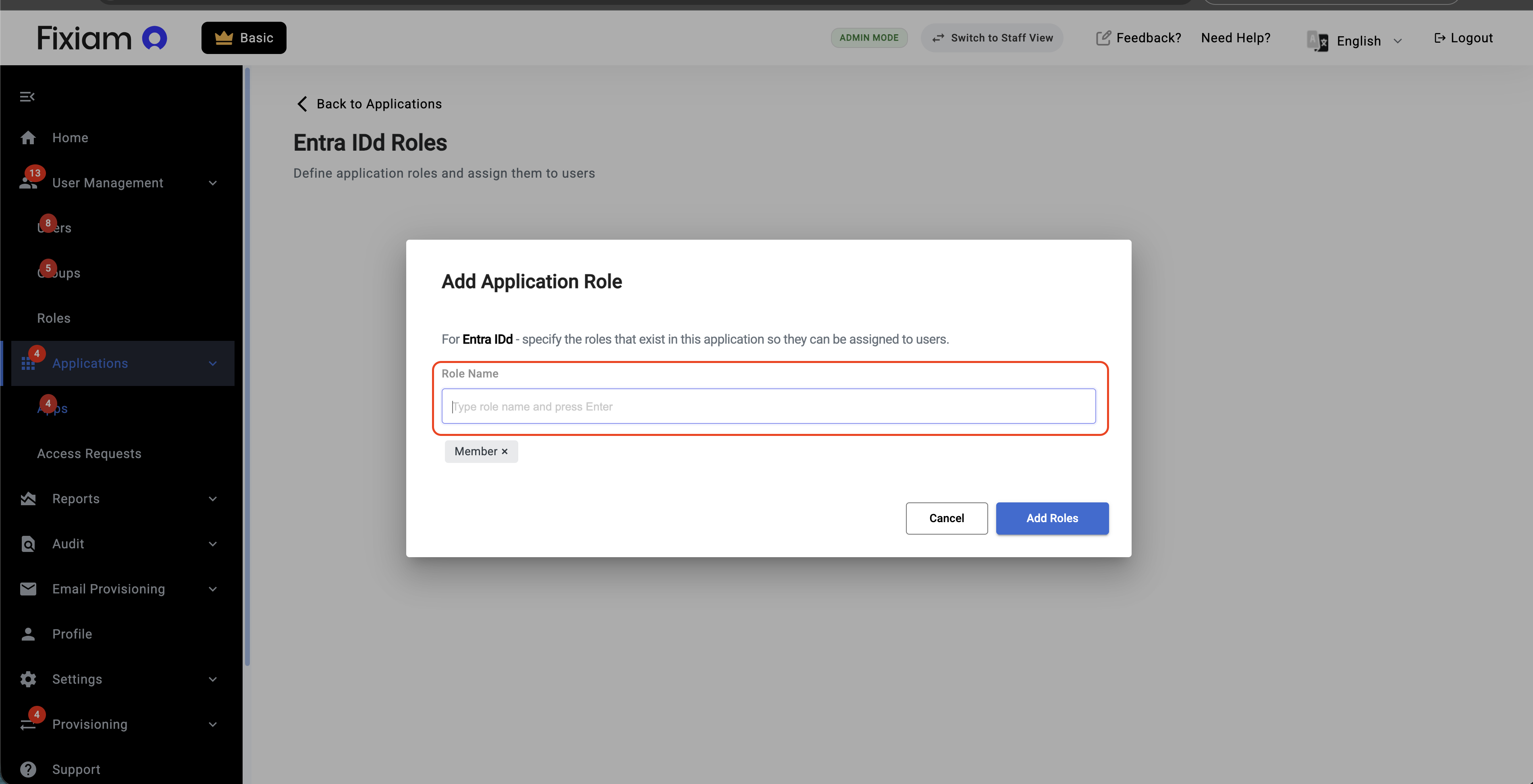
You can create as many roles as needed based on how the application is structured.
Step 2: View Users with Access
After roles are created, you will see a list of users.
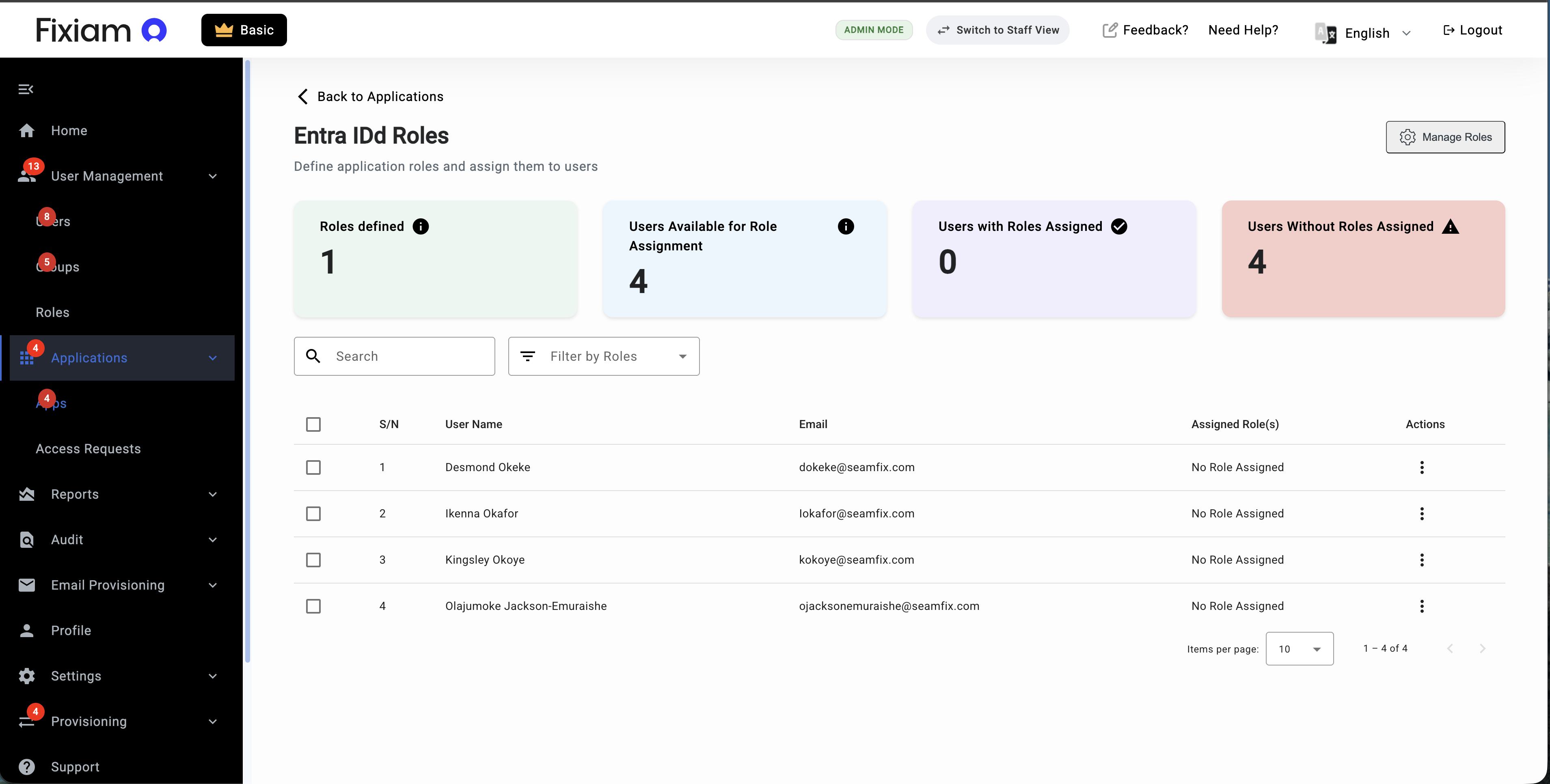
Important:
- Only users who already have access to the application will appear here
- If no users are displayed, it means access has not been granted yet
To grant access, assign users to the appropriate group for that application
→ See: Managing Groups and Access
Step 3: Assign Roles to Users
Once users are visible:
- Assign roles to individual users
- Or select multiple users and assign roles in bulk
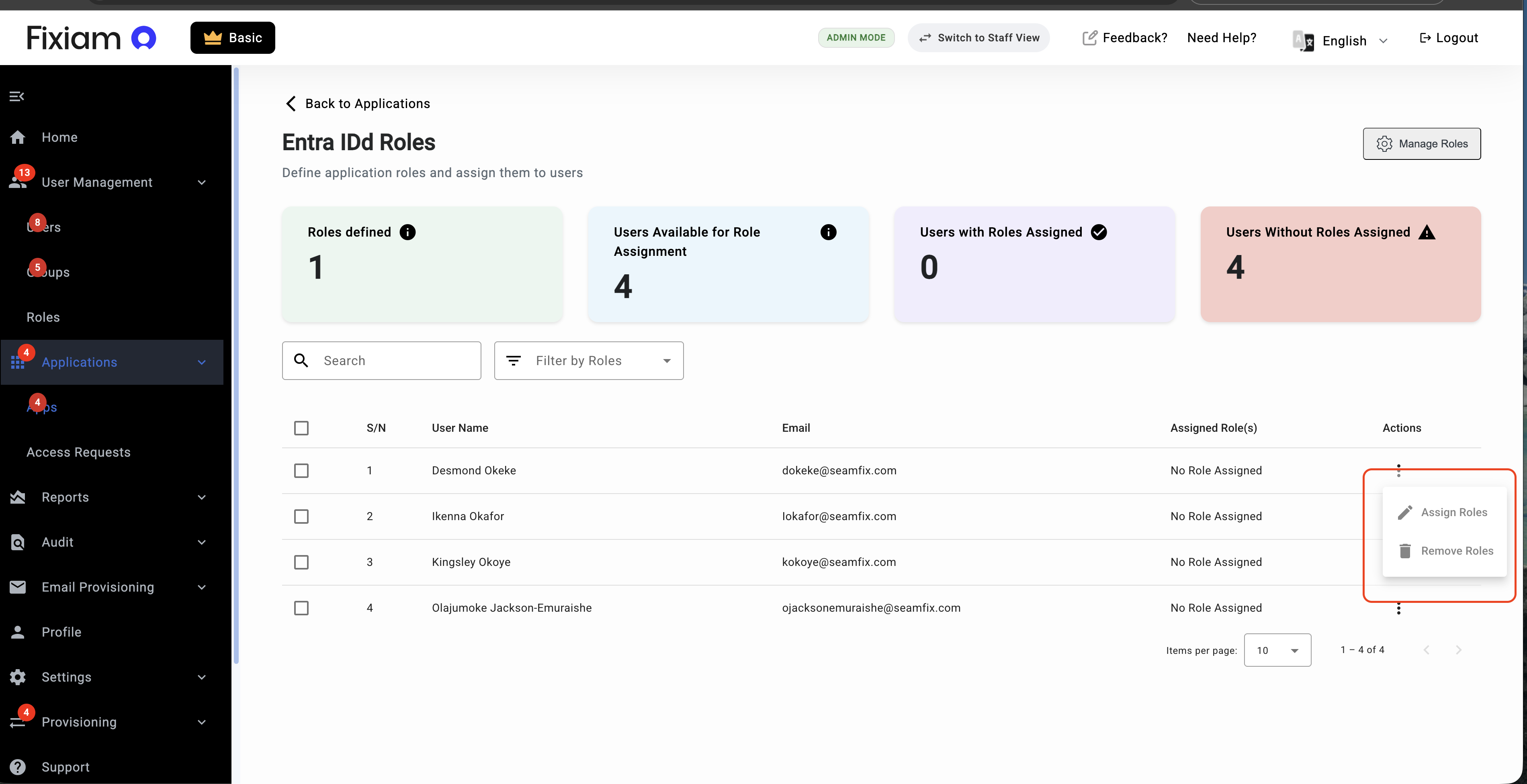
You can also update or remove roles at any time.
Step 4: What Happens Next
When a user logs into the application:
- Fixiam sends the assigned role
- The application enforces permissions based on that role
This ensures users have the correct level of access without managing roles separately in each system.
Troubleshooting
No users are displayed
Users have not been granted access to the application. Assign them via groups first.
User has access but no role
Ensure a role has been assigned before login.
Role not reflected in the application
Confirm the application supports role mapping and is properly configured.
Summary
Application Role Mapping helps you:
- Centralize permission management
- Reduce manual configuration in applications
- Ensure users always have the right level of access
Updated 4 months ago