
Password Authentication
Password authentication is the primary method used to verify a user's identity in Fixiam. It requires users to provide a valid username and password before access is granted to the platform or protected applications.
To help organizations enforce strong password security, Fixiam provides configurable password policies and password aging controls.
Password Policy
Password policies define the requirements users must meet when creating or changing their passwords.
Navigate to:
Settings → User Management Settings → Password Settings
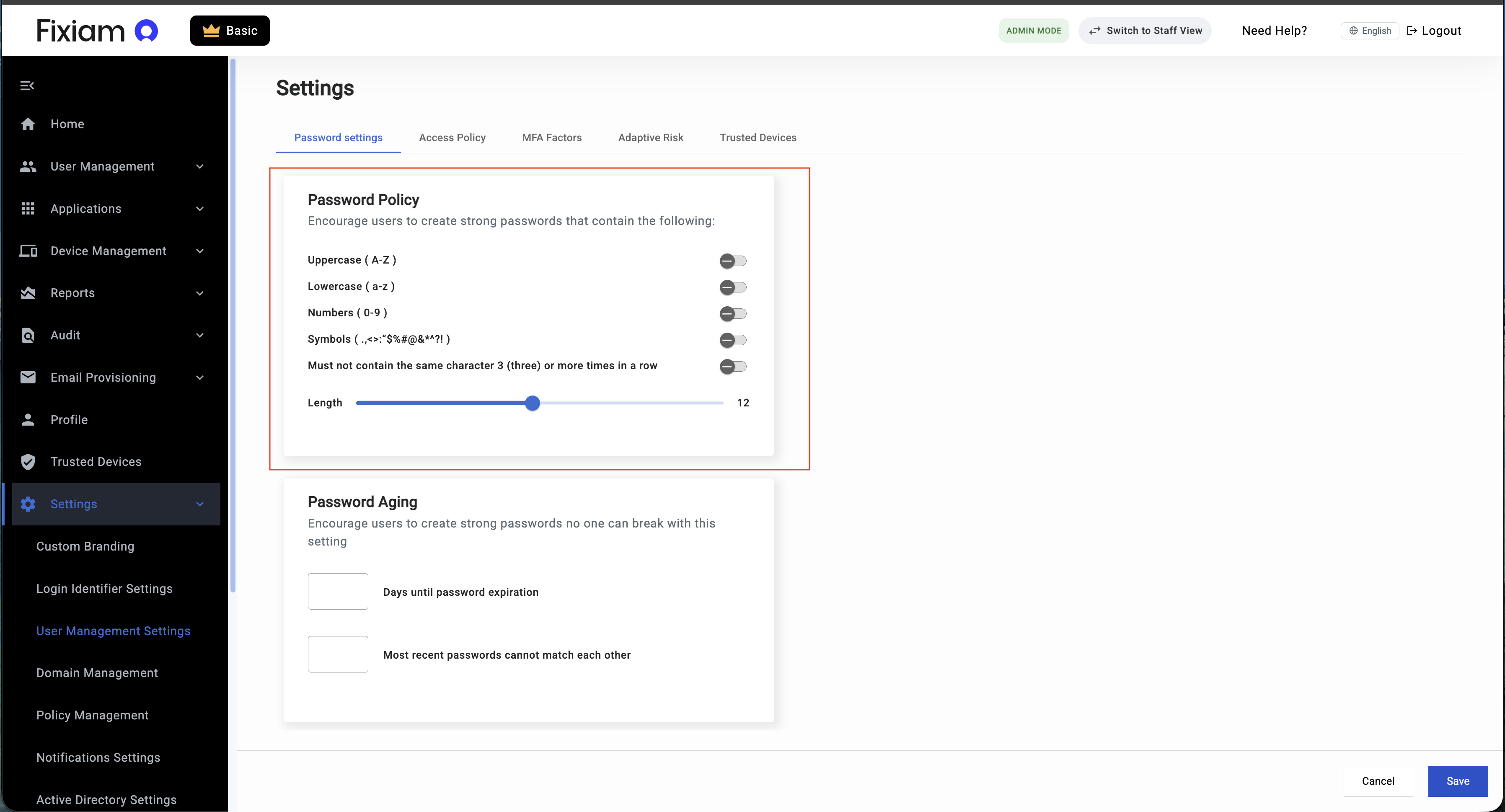
Available Password Requirements
Administrators can enable one or more of the following requirements:
| Requirement | Description |
|---|---|
| Uppercase Characters (A-Z) | Require at least one uppercase letter. |
| Lowercase Characters (a-z) | Require at least one lowercase letter. |
| Numbers (0-9) | Require at least one numeric character. |
| Symbols | Require at least one special character such as ! @ # $ % ^ & *. |
| Repeated Character Restriction | Prevent the same character from appearing three or more consecutive times. |
| Minimum Password Length | Define the minimum number of characters required in a password. |
Example Password Policy
An organization may require:
- At least one uppercase letter
- At least one lowercase letter
- At least one number
- At least one special character
- Minimum length of 12 characters
Valid Password
SecurePass123!Invalid Password
password123The password above is invalid because it does not contain an uppercase letter or a special character.
Repeated Character Restriction
This setting prevents users from creating passwords that contain the same character multiple times in succession.
Invalid Example
AAApassword123!
111password123!
Valid Example
AApassword123!
11password123!
This helps reduce the use of weak and predictable password patterns.
Password Aging
Password aging policies help ensure passwords are changed periodically and prevent users from repeatedly reusing old passwords.
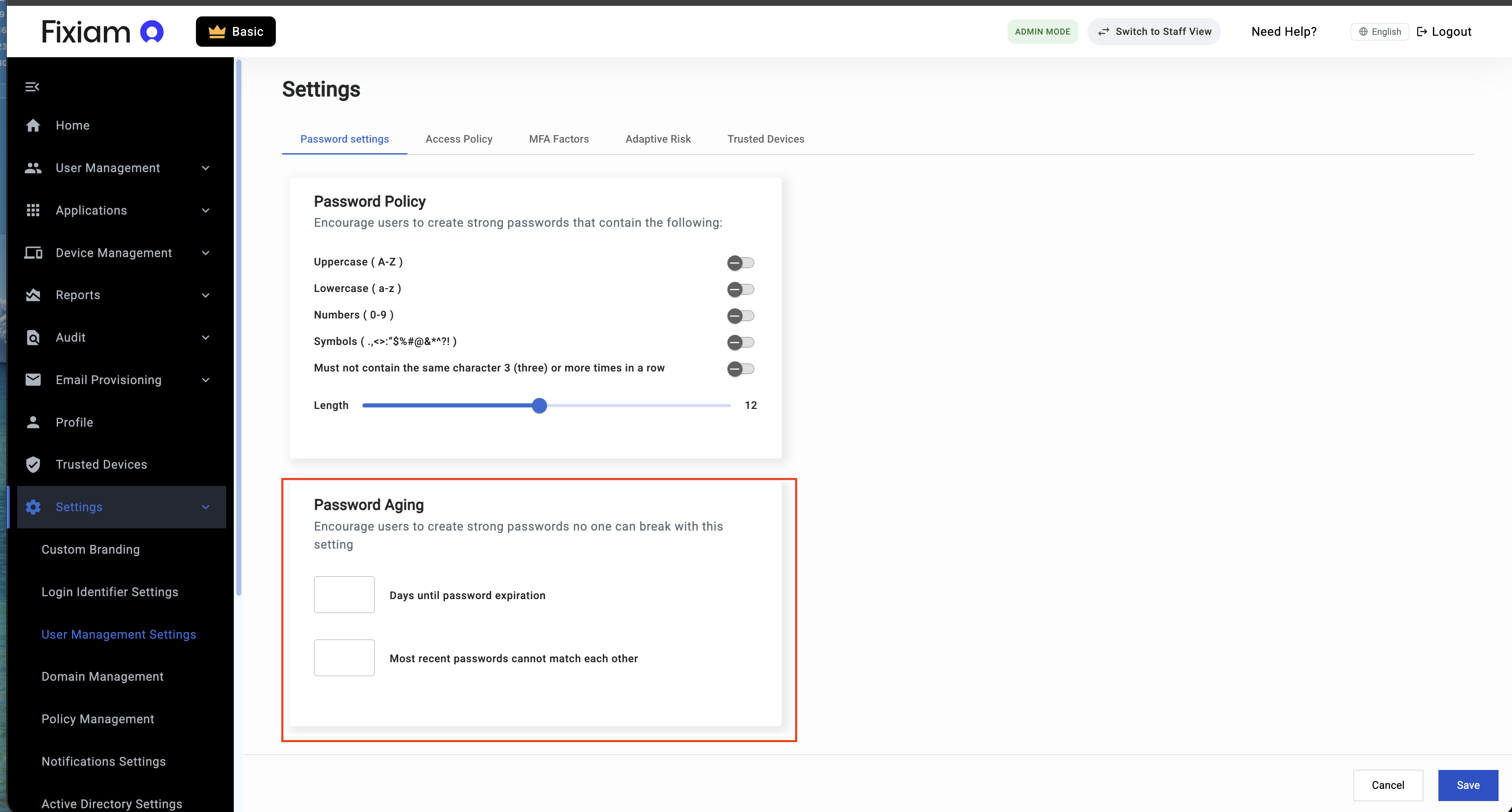
Password Expiration
Specify the number of days a password remains valid before users must create a new one.
Example
If password expiration is set to 90 days:
- User creates password on January 1.
- Password expires on April 1.
- User must update the password before continuing to access the platform.
Password History
Prevent users from reusing recently used passwords.
Example
If password history is set to 5:
A user cannot reuse any of their previous five passwords when creating a new password.
This helps ensure users continue creating unique passwords instead of cycling through the same few passwords repeatedly.
How Password Authentication Works
The password authentication process follows these steps:
- User enters their username and password.
- Fixiam validates the credentials.
- If the credentials are valid, the user proceeds to any configured Multi Factor Authentication (MFA) or Adaptive Risk checks.
- If the credentials are invalid, the login attempt is rejected.
- Access is granted only after all configured authentication requirements have been satisfied.
Note
Password authentication is only the first layer of security. Organizations can strengthen security further using Multi Factor Authentication (MFA), Adaptive Risk Authentication, and Trusted Device policies.
Best Practices
- Require a minimum password length of at least 12 characters.
- Enable uppercase, lowercase, numeric, and symbol requirements.
- Prevent repeated character patterns.
- Configure password expiration based on organizational security policies.
- Prevent reuse of recently used passwords.
- Enable MFA for sensitive systems and privileged accounts.
- Review password policies regularly to ensure compliance with security standards.
Related Topics
- Login Controls
- Multi Factor Authentication (MFA)
- Adaptive Risk Authentication
- Trusted Devices
Updated about 2 months ago