
Segregation of Duties (SOD)
Overview
Segregation of Duties (SOD) helps organizations prevent users from holding conflicting access privileges that could create security, compliance, or operational risks.
In many organizations, certain combinations of access should never belong to the same user.
For example:
- A user should not both initiate and approve the same transaction
- A user should not belong to conflicting operational groups
- A user should not hold privileged roles that violate internal governance policies
Fixiam allows administrators to define and enforce these access conflict rules using Segregation of Duties policies.
SOD policies can currently be enforced across:
- Application Roles
- User Groups
Once configured, Fixiam automatically detects and prevents conflicting access assignments based on the defined governance rules.
Accessing Segregation of Duties
Navigate to:
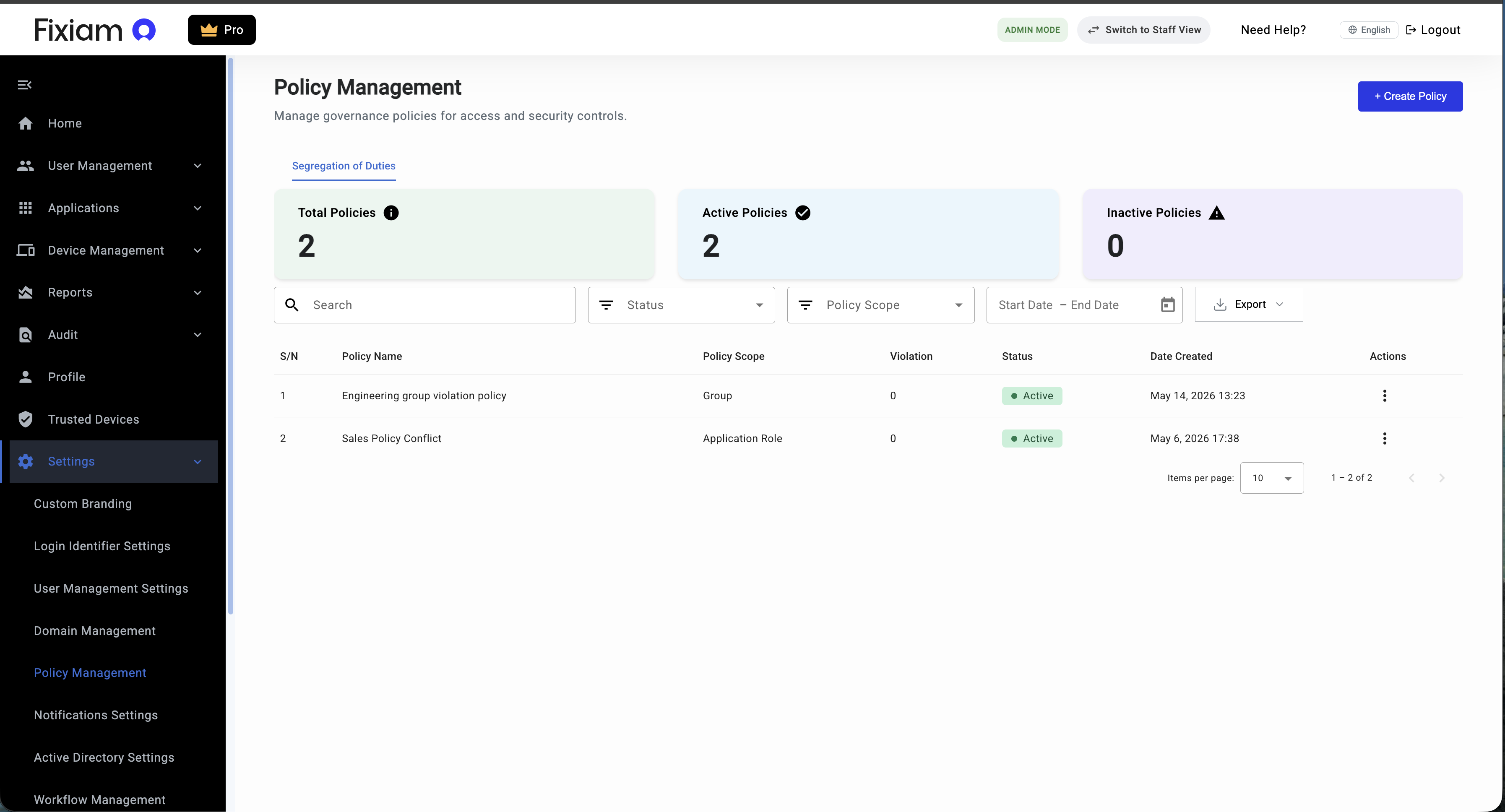
Settings → Policy Management
The Policy Management page is where administrators configure and manage Segregation of Duties policies.
Understanding Segregation of Duties Policies
A Segregation of Duties policy defines two access assignments that should not belong to the same user.
Each policy includes:
| Component | Description |
|---|---|
| Policy Name | Name used to identify the governance rule |
| Policy Scope | Defines whether the rule applies to Application Roles or Groups |
| Conflicting Access | The two access assignments that should not coexist |
| Enforcement Action | Action automatically enforced when a conflict occurs |
Supported Policy Scopes
Fixiam currently supports the following SOD policy scopes:
| Scope | Description |
|---|---|
| Application Role | Prevents users from holding conflicting application roles |
| Group | Prevents users from belonging to conflicting groups |
Creating an Application Role Conflict Policy
Application role conflict policies help prevent users from receiving conflicting privileges within an application.
Steps
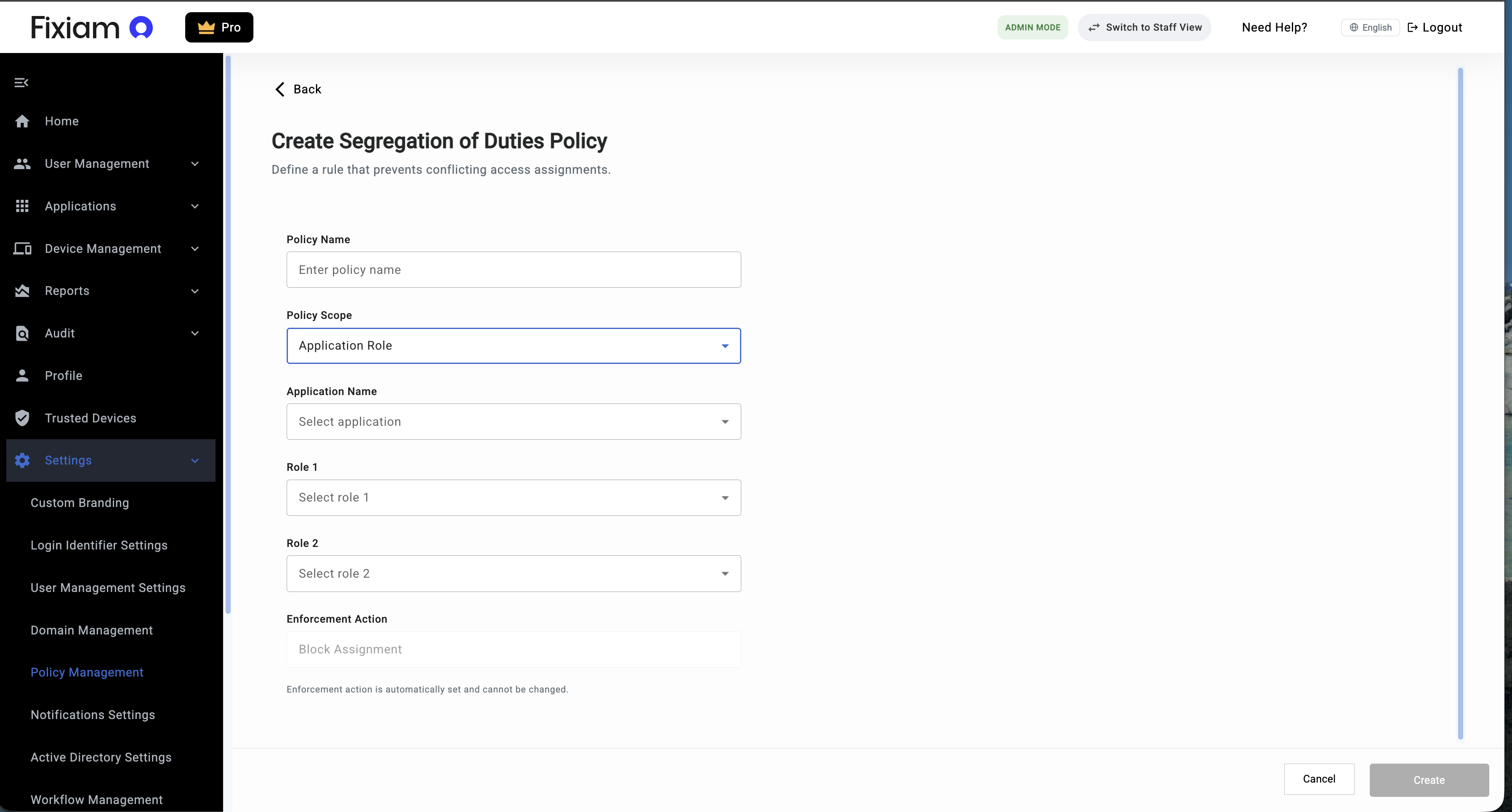
- Click Create Policy
- Enter the policy name
- Select Application Role as the policy scope
- Select the target application
- Select the first conflicting role
- Select the second conflicting role
- Create the policy
Example
A user should not simultaneously hold:
- Maker
- Approver
Once the policy becomes active, Fixiam automatically prevents users from being assigned both roles.
Creating a Group Conflict Policy
Group conflict policies help prevent users from belonging to conflicting organizational groups.
Steps
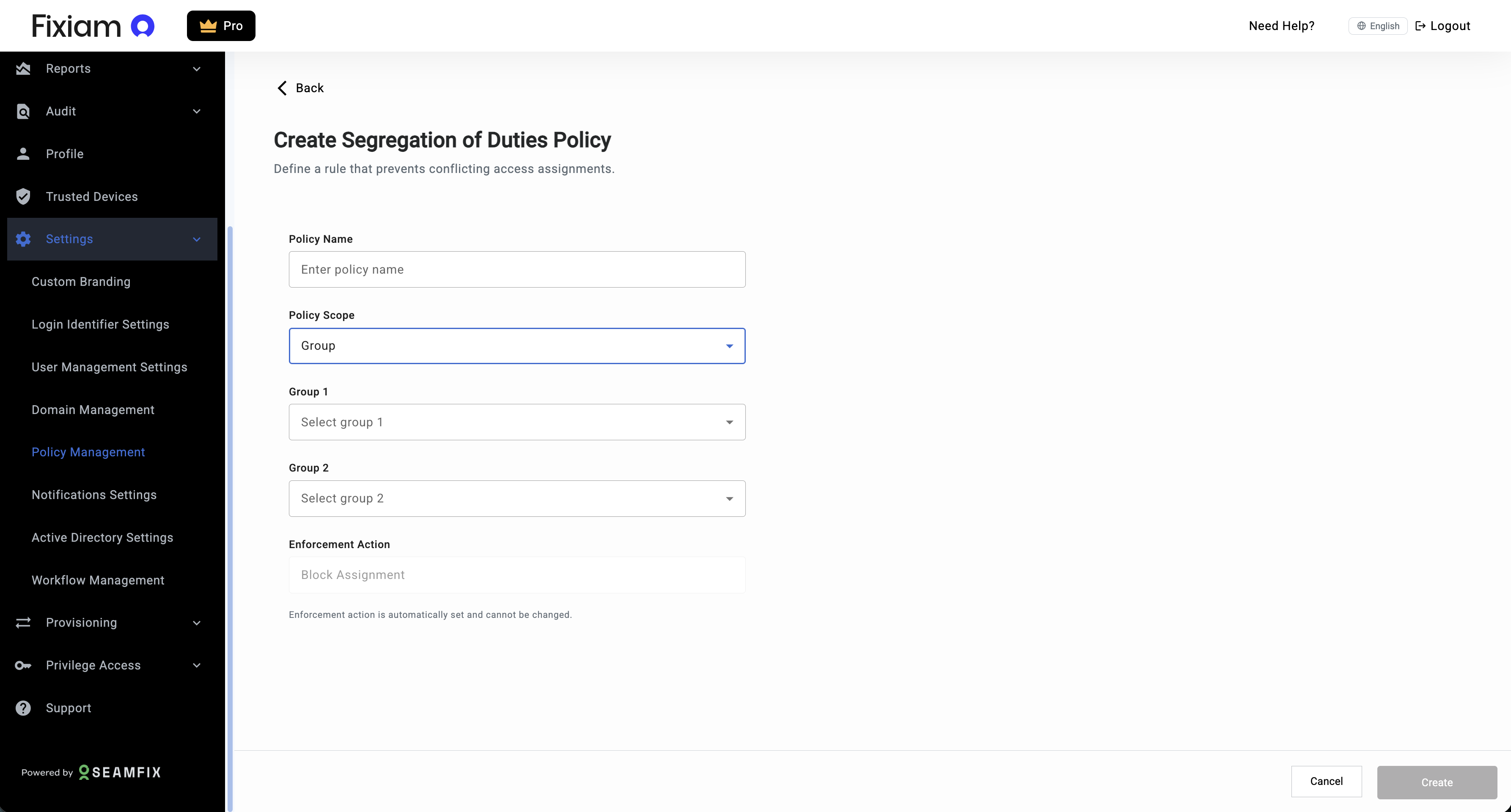
- Click Create Policy
- Enter the policy name
- Select Group as the policy scope
- Select the first conflicting group
- Select the second conflicting group
- Create the policy
Example
A user should not belong to both:
- Finance Operations Group
- Finance Audit Group
Once active, Fixiam automatically blocks conflicting group assignments.
How SOD Enforcement Works
After a policy is activated, Fixiam continuously evaluates user access assignments against configured conflict rules.
Enforcement includes:
- Blocking new conflicting assignments
- Detecting existing conflicts
- Recording policy violations
- Displaying unresolved violations for administrative review
Important Notes
- Enforcement is automatic once a policy is active
- Existing user assignments are also evaluated
- Violations remain visible until resolved
Managing SOD Policies
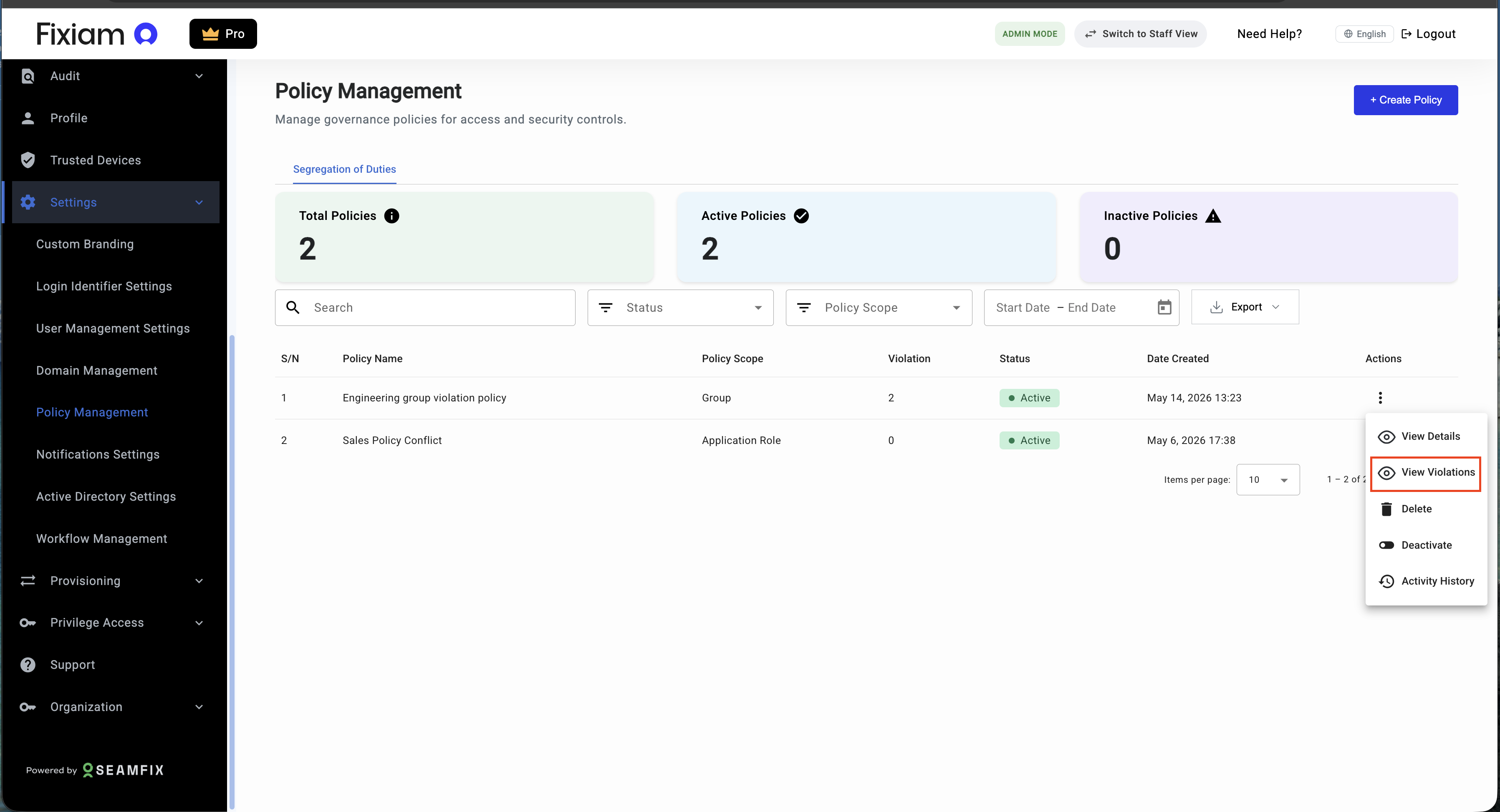
Administrators can manage policies directly from the Segregation of Duties dashboard.
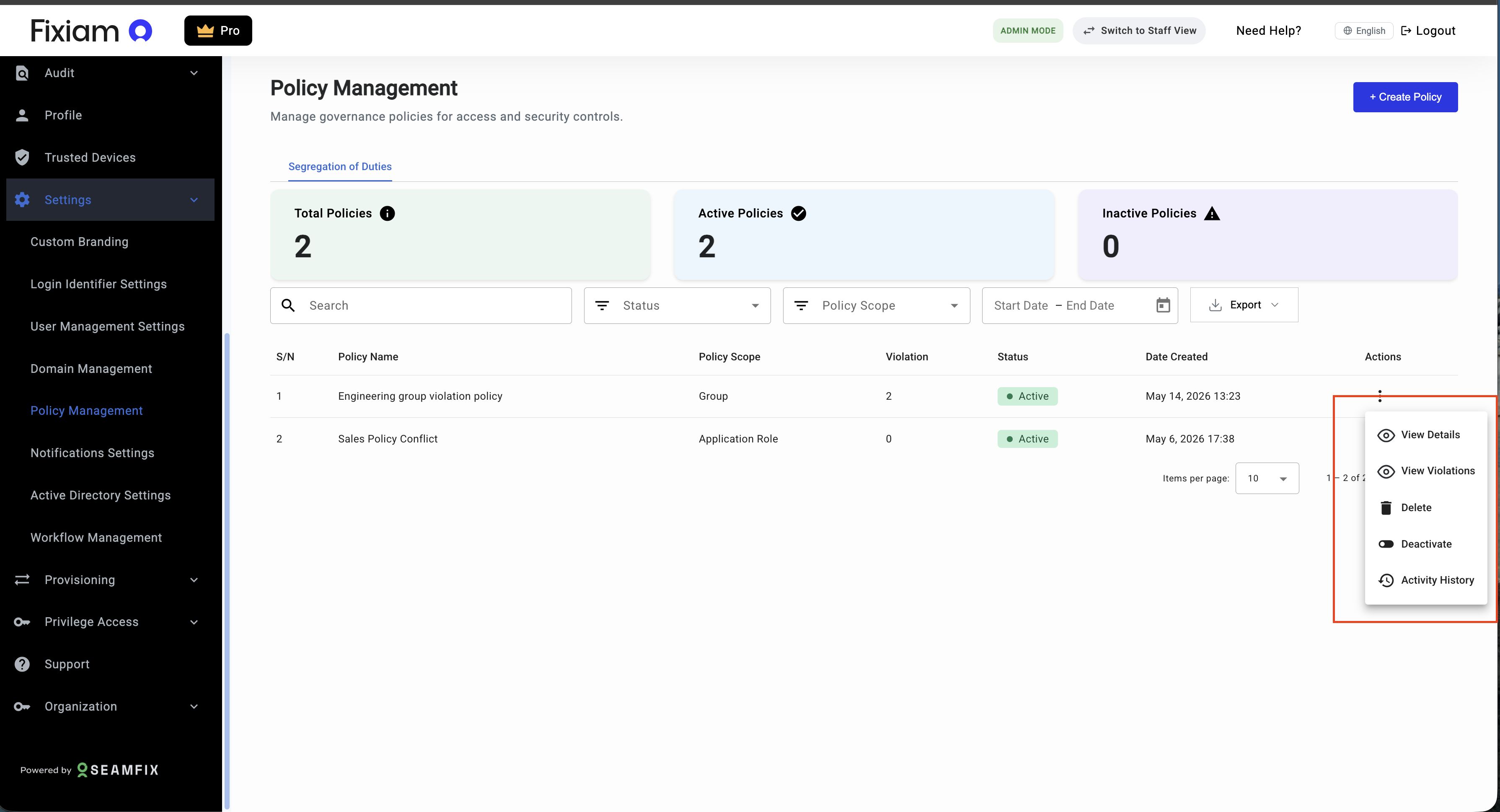
Available actions include:
| Action | Description |
|---|---|
| View Details | View policy configuration |
| View Violations | View users affected by the policy |
| Activate / Deactivate | Enable or disable policy enforcement |
| Delete | Permanently remove the policy |
| Activity History | View policy activity records |
Viewing Violations
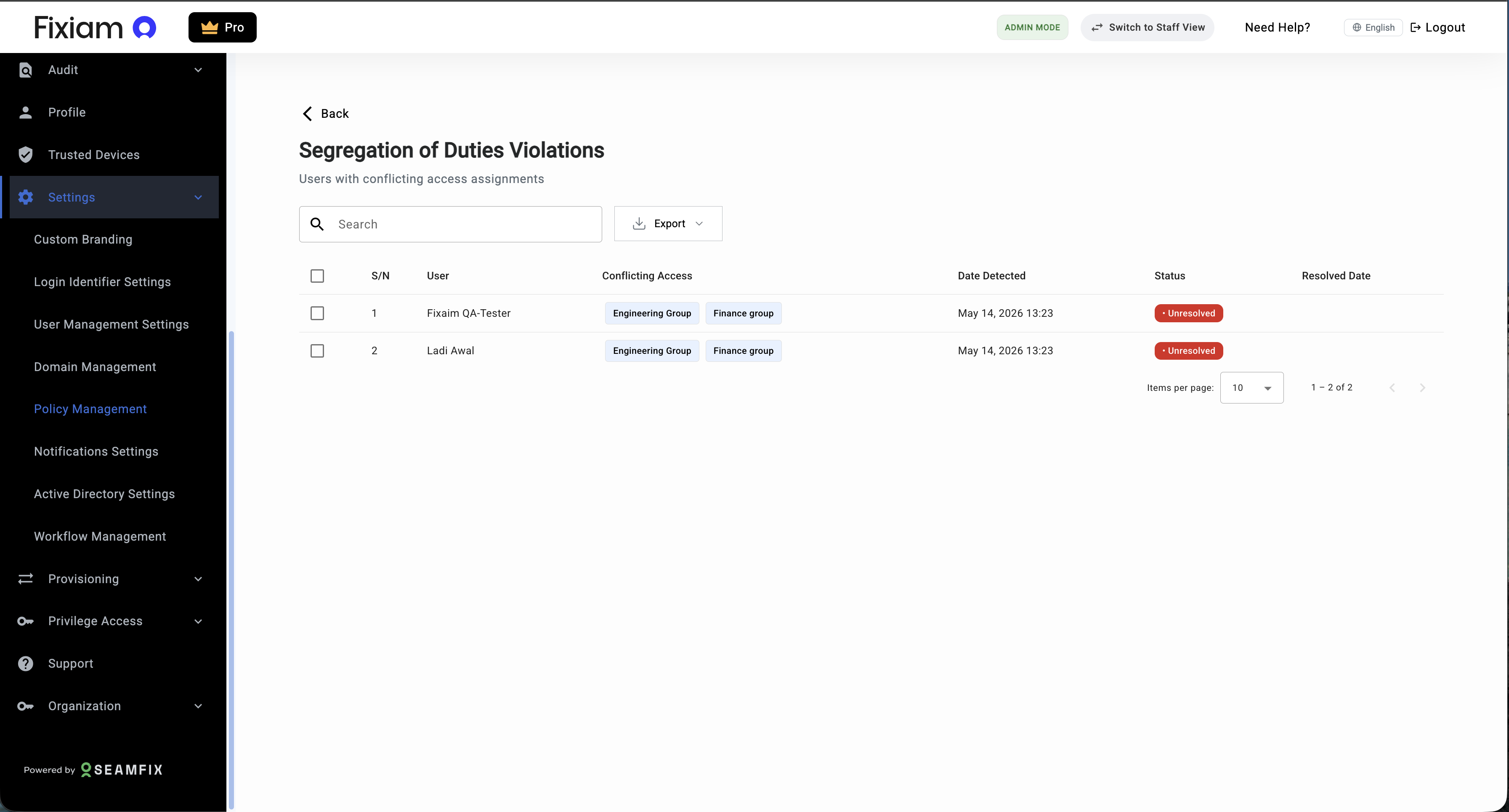
The Violations page displays users with conflicting access assignments.
Navigate to:
Any policy from the table → View Violations
The violations dashboard helps administrators identify unresolved governance conflicts across the organization.
Understanding Violation Records
Each violation record includes:
| Field | Description |
|---|---|
| User | User with conflicting access |
| Conflicting Access | Roles or groups causing the conflict |
| Date Detected | When the conflict was identified |
| Status | Current resolution state |
| Resolved Date | When the conflict was resolved |
Resolving Violations
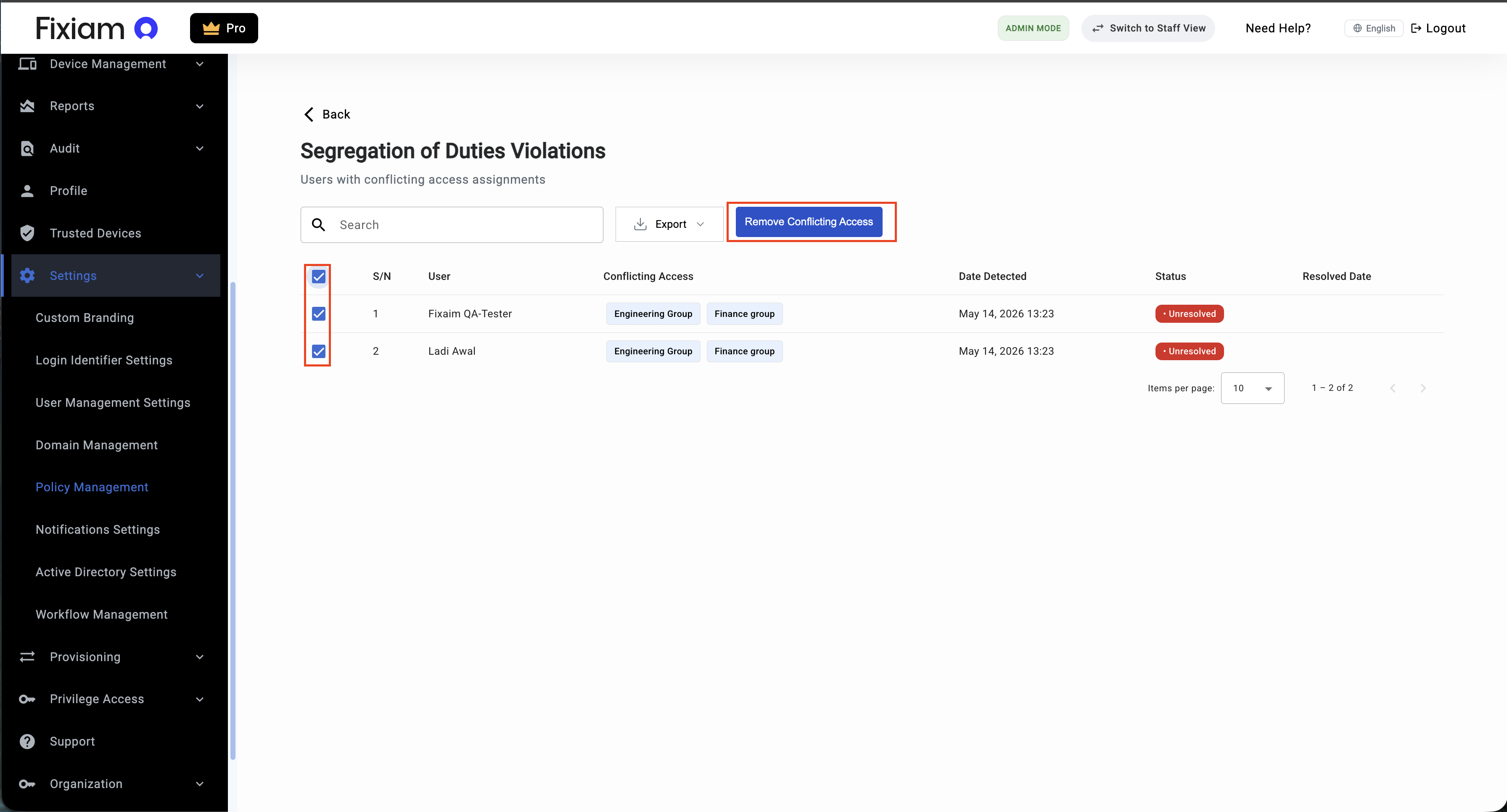
Administrators can resolve access conflicts directly from the violations page.
Steps
- Select the affected user
- Click Remove Conflicting Access
- Confirm the action
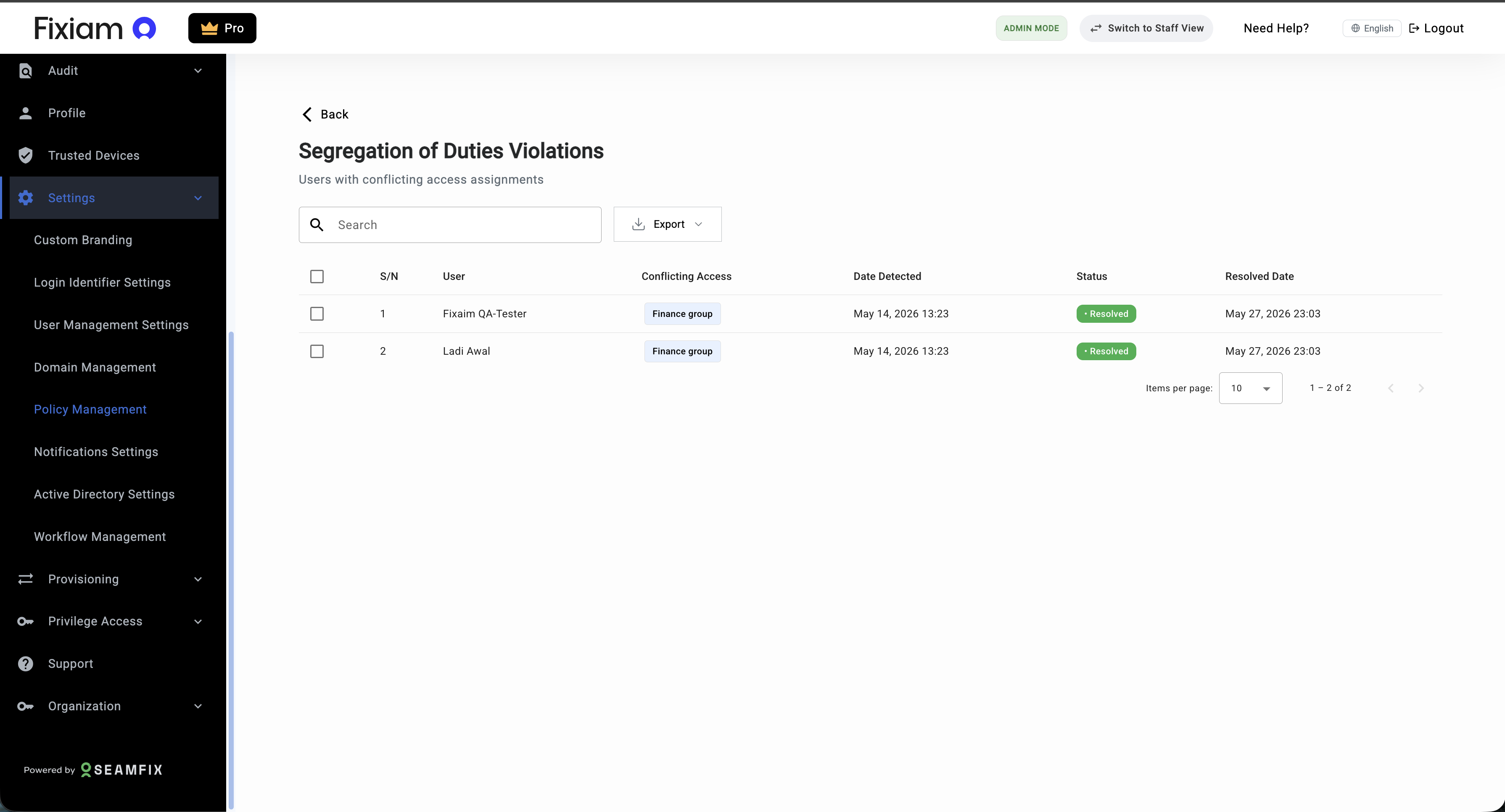
Once resolved:
- Conflicting access is removed
- The violation status is updated
- The activity is recorded for audit purposes
Activity Tracking and Audit Visibility
Fixiam maintains activity records for Segregation of Duties operations.
Tracked activities may include:
- Policy creation
- Policy activation
- Policy deactivation
- Policy updates
- Violation resolution activities
These records help organizations maintain governance visibility and audit readiness.
Best Practices
- Start with High-Risk Access Conflicts-Begin with roles or groups that create the highest governance risk.
- Review Violations Regularly-Monitor unresolved conflicts regularly to maintain compliance.
- Validate Access Structures-Ensure roles and groups are properly structured before enabling enforcement.
- Avoid Duplicate Policies-Avoid configuring overlapping or duplicate conflict rules.
Troubleshooting
| Issue | Possible Cause | Resolution |
|---|---|---|
| Policy not triggering | Incorrect policy configuration | Review configured access combinations |
| Violations not appearing | No conflicts detected | Validate user access assignments |
| Unable to create policy | Required fields missing | Complete all mandatory fields |
| Conflict still exists after resolution | Access removal incomplete | Revalidate user assignments |
Updated about 2 months ago